
Trainer Handbook


Assessment
The Trainer handbook has been designed as a tool for you to use throughout the training journey. It contains all the information you need to get started and make sure that your experience is a positive, challenging and rewarding one.
Viewing Assessments
To view assessment assessor guides for theory in aXcelerate;
Step 1. Go into a student profile. Click on intake
Step 2. Click on the assessment magnifying glass you want to view.
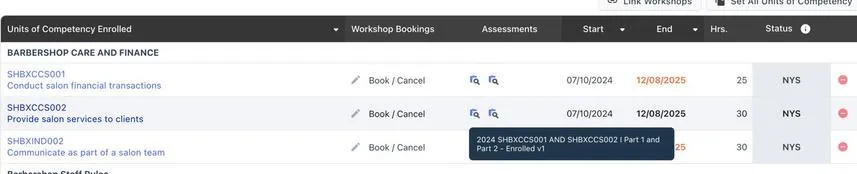
Step 3. Click mark
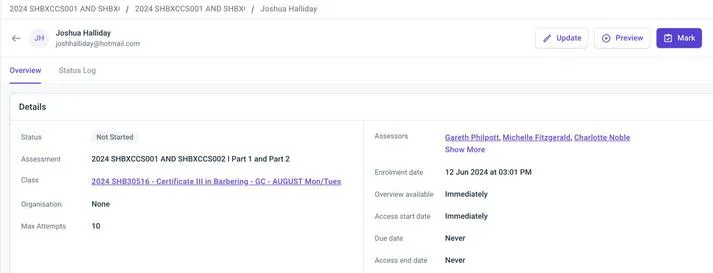
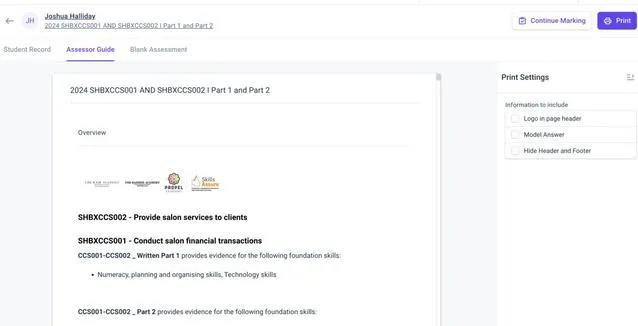
Step 4. Click on print and then click assessor guide
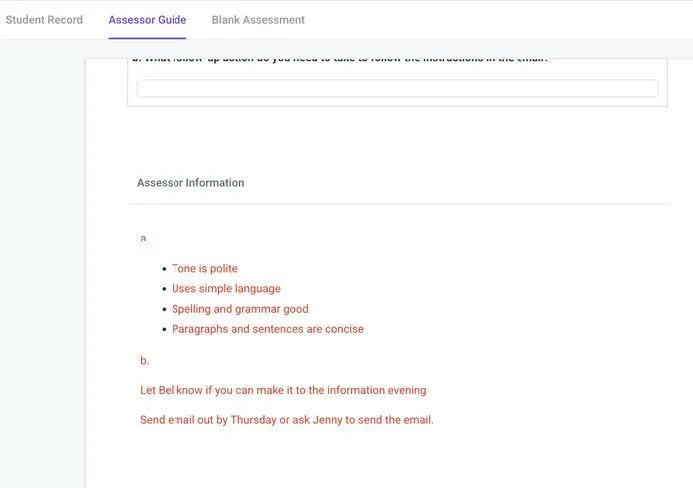
Assessor guide bench marks are under “assessor information” in red writing
Assessment Submission
Students MUST submit their assessments through the Online Student Portal to ensure they have completed the student declaration as part of the Student Assessment Submission Form (this form is automatically generated and signed by the student on submission).
Trainers will also assist students in understanding this procedure. Should the student have difficulty with these, the student should contact the trainer for assistance.
Assess STUDENT Submission
The assessment of students’ work must be conducted in line with Propel and Academies ‘Assessment and Training Policy’. Results are to be supplied to the student within 3 business days of submission.
1. From your Axe Dashboard you will be able to see and access unmarked assessment submissions for ALL students.
2. Trainer/Assessor is to refer to the following Trainer Resources for the marking and grading of the assessment:
Assessment and Training Policy - designed to ensure that all Assessors provide a consistent high standard of service and that the rights of all candidates are protected
Training and Assessment Strategy (TAS) - identifies the proposed target groups, learning and assessment modes and strategies and practices, the assessment validation processes to be utilised and the pathways available for further training options.
Trainer Assessment Guide (TAG) – Benchmark answers (under each individual question in an assessment on the online portal)
Remember to use professional judgement when assessing, the bench mark is a guide. You MUST provide feedback on the portal to the student or when assessing to note why you marked the assessment satisfactory/non satisfactory.
MARKING THEORY ASSESSMENTS
Students submitted assessments will sit on the trainer dashboard.
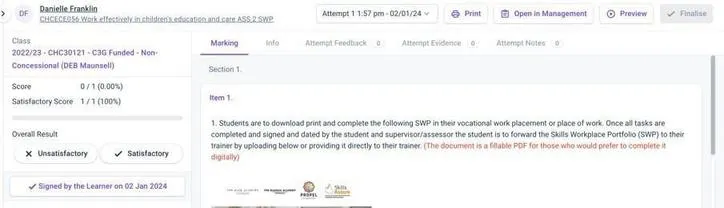
1. Go to the trainer’s Axe dashboard. All assessments submitted can be viewed here.
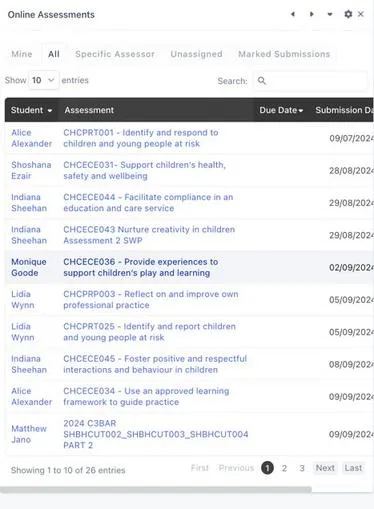
2. Click on the assessment to mark - If the student is submitting for the first time you will see attempt 1 when you click on the assessment. You will also see how many questions have already been selfmarked (e.g. multiple choice, true or false)
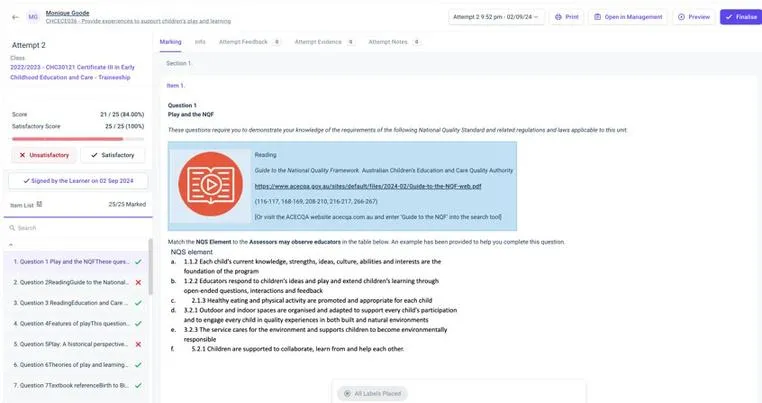
3. Continue to mark each question SATISFACTORY or UNSATISFACTORY. Benchmark answers will be under each individual question under the “INFO” Tab.
4. Please click on the feedback tab for specific answers that warrant feedback, either because the answer is good OR because extra support is needed if the student was incorrect.
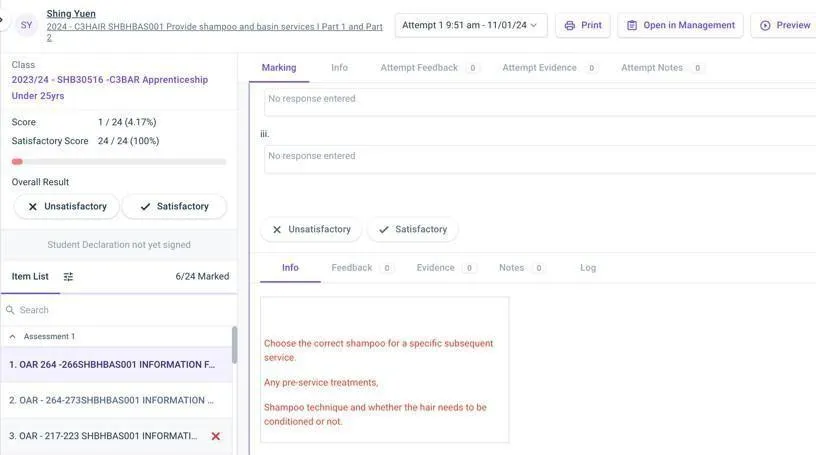
5. If the student has resubmitted their assessment, you will be able to identify how many attempts.

6.Any questions on the left-hand side that doesn’t have a tick has been re-submitted.
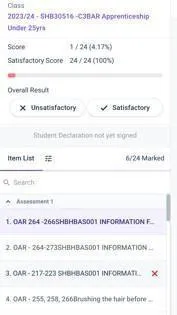
7. Click on any questions that need to be re-marked and use the benchmark answers (these can be seen in red following each question) as a guide.
8. If correct, click on SATISFACTORY. Also click on feedback, provide appropriate feedback and save.
9. If the answers are incorrect click on UNSATISFACTORY and give appropriate feedback to enable the student to re-submit, then save.
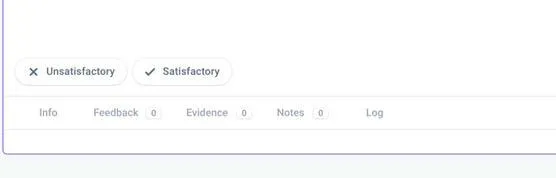
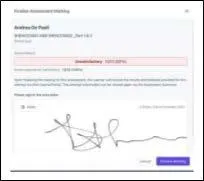
10. Once all questions have been marked the overall assessment (SAT or UNSAT) give appropriate feedback, save and finalise marking. You will be promoted to sign the declaration of assessment you have marked.
PROVIDING FEEDBACK TO TRAINER
If a unit of theory has been marked “Satisfactory” and there is still practical outstanding. The assessor needs to make a note on the student profile and send to the trainer.

The assessor is responsible for checking to ensure that the trainer is kept in the loop of what has been marked off and what is left to complete the unit.
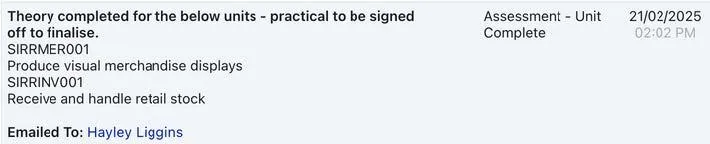
Once a unit is completed (All theory, observations and consultations are complete) Assessor needs complete "UNIT OF COMPETENCY REPORT" complete the relevant information relating to the finalised unit.
Step1. Go to student aXcelerate profile
Step 2. Go into intake
Step 3. Click on template and search "Unit of Competency Report"
Step 4. Complete relevant information for the unit that has been finalised. Ensure all evidence is saved in aXcelerate. For eg. SWOP book, any portfolio evidence, consultation and theory.
Step 5. Once completed, save as PDF and download to desktop - upload into student profile under note type: Unit Completion - XXX - UOC Completed XXX and attached form.
Step 6. IF there are any discrepancies, send an email to the trainer and CC [email protected] to advise of missing evidence to chase up immediately.
Step 7. Ensure to flag this as a FOLLOW UP TASK for the trainer

OTHER TOOLS FOR ASSESSMENT
Verbal Questioning (this can only be done, when trainer/assessor is sitting with the student to discuss the question/answer) - If the student's answer does not reflect that of the benchmark answer however it is clear based on your professional and industry knowledge
that the Student has an understanding of what the question has asked, then you may choose to question the student to confirm their understanding and prompt them to expand their answer.
Step 1. This task can only be completed with the student
Step 2. Trainer to write down exactly word for word
1. Professional Judgement - If the student's answer does not reflect that of the bench mark answer however it is clear based on your professional and industry knowledge, that the Student has an understanding of what the question has asked then you may make a
comment on the student portal under EVIDENCE. Providing the Students response meets that of the unit’s element/required knowledge or skill. Refer to the training package guide on training.gov.
2. In the student portal under the evidence section, note down the question the professional judgement refers to.
3. Record reason at the end of the evidence section and Indicate the question number and the student answer given.
a. Student has demonstrated the required knowledge for this question. Knowledge has been covered for element 1.3
b. It does not reflect the benchmark answers as information gathered for the response has been sourced from an alternative resource.
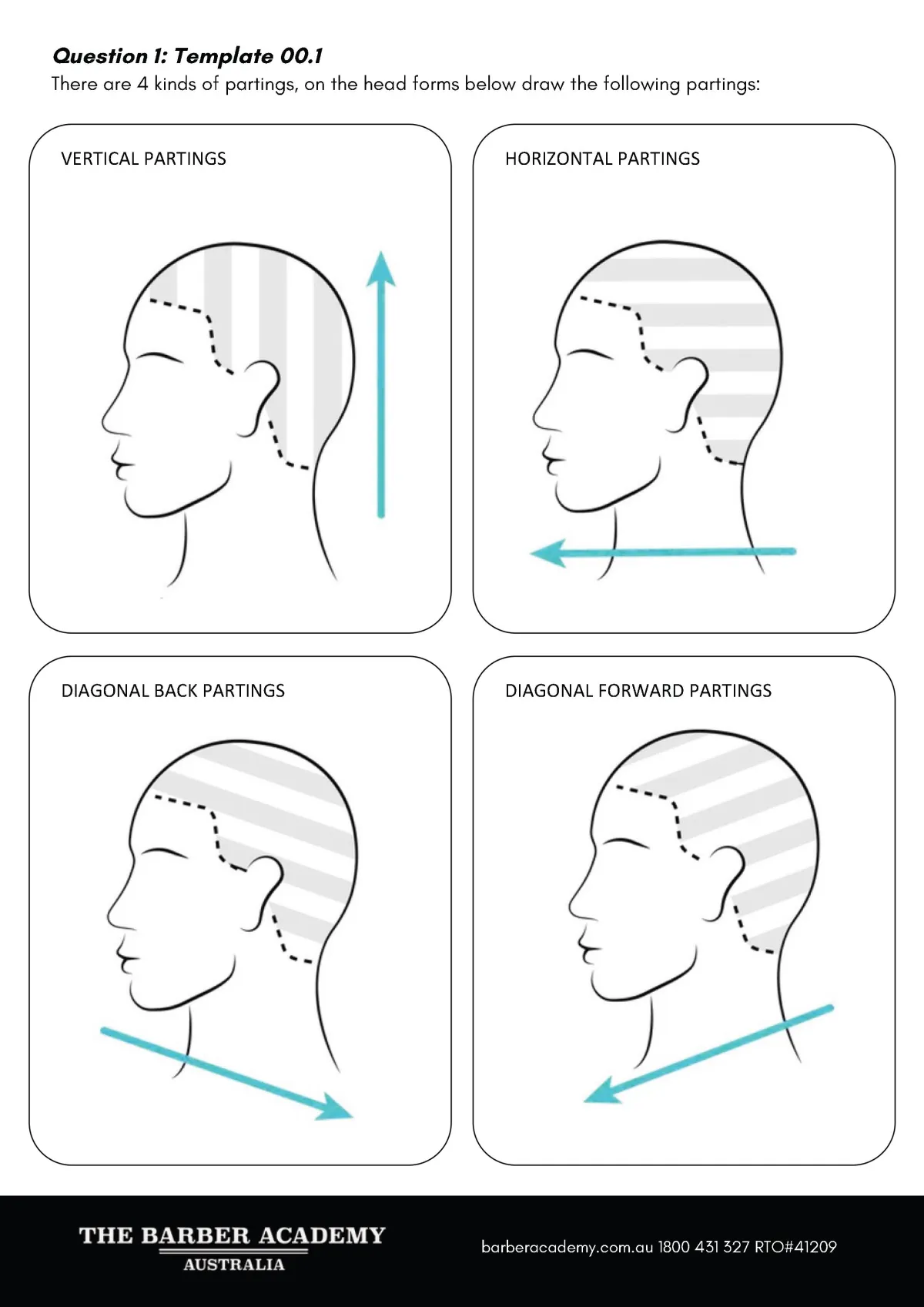
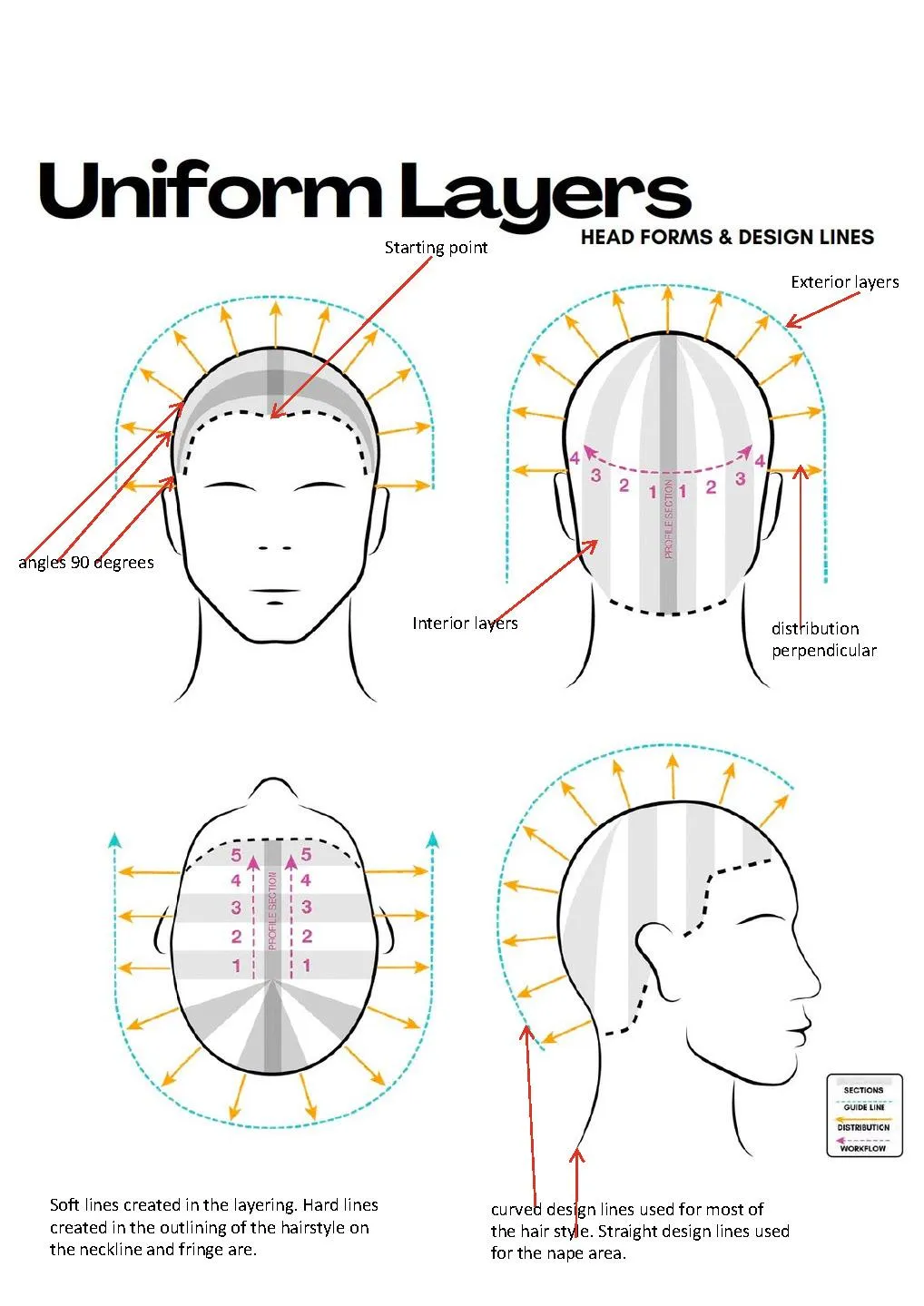
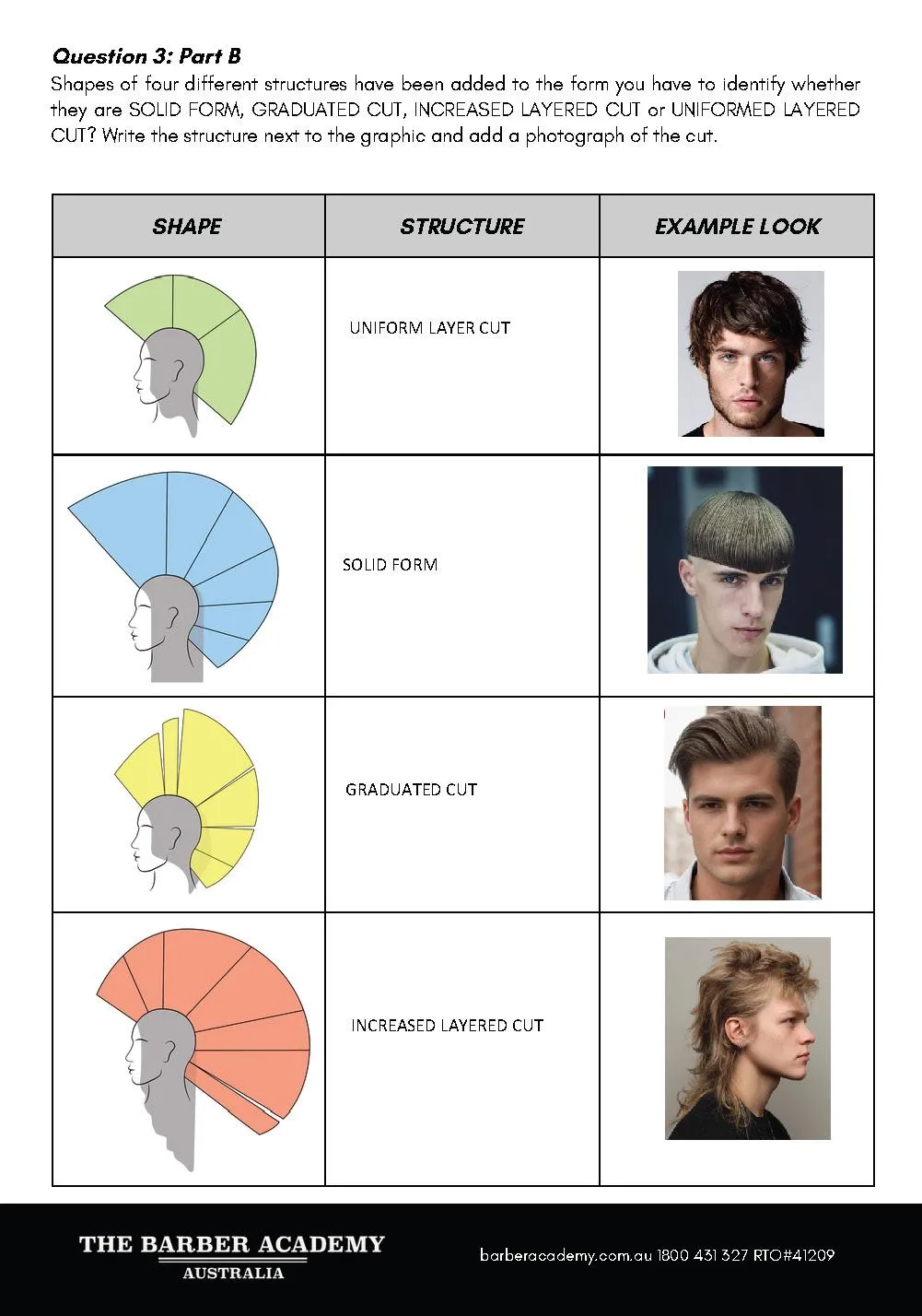
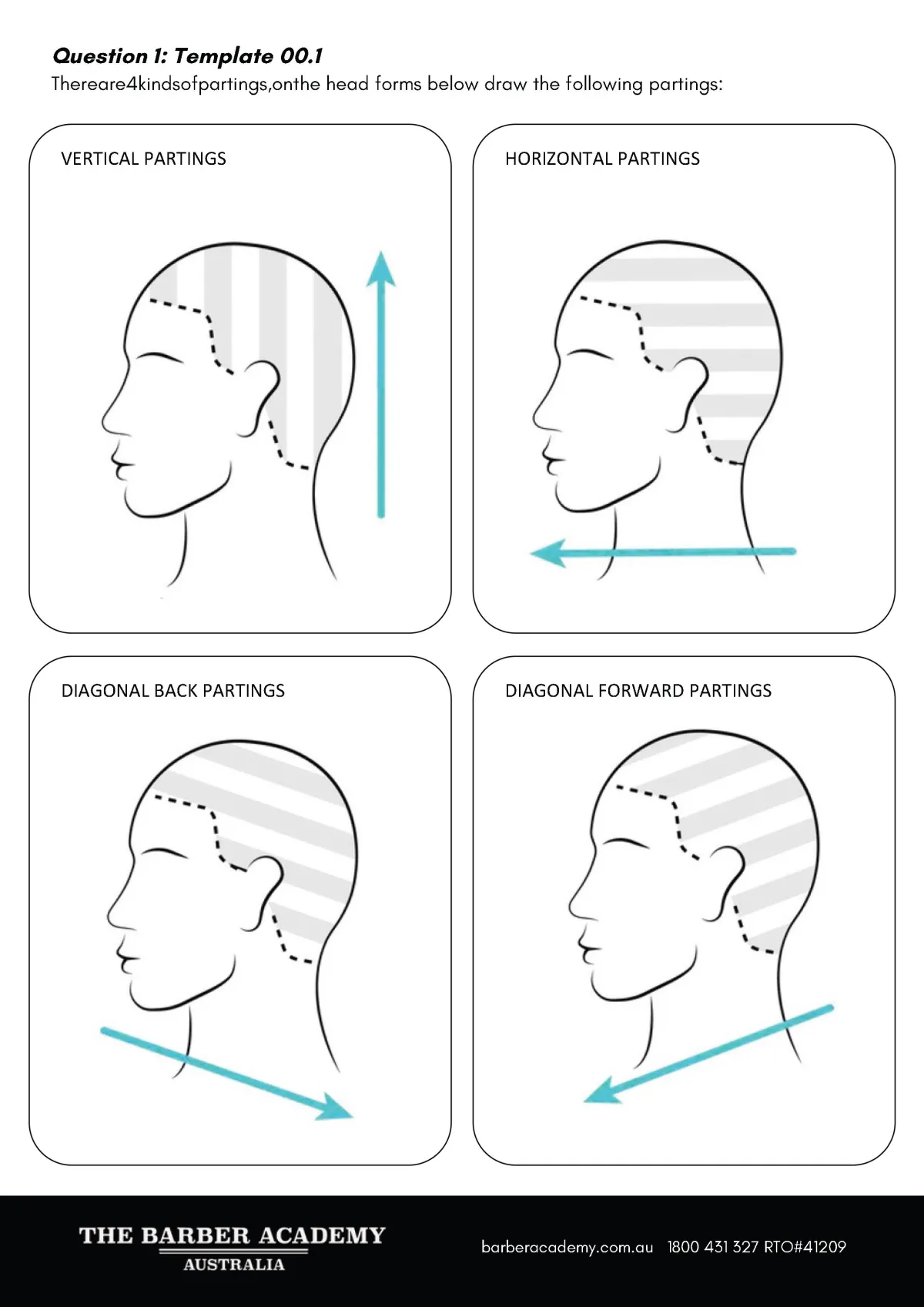
ASSESSMENT SAMPLE SHBHCUT001 - PART 3
Please refer to the below sample assessment.
Students MUST complete all information to be marked satisfactory.

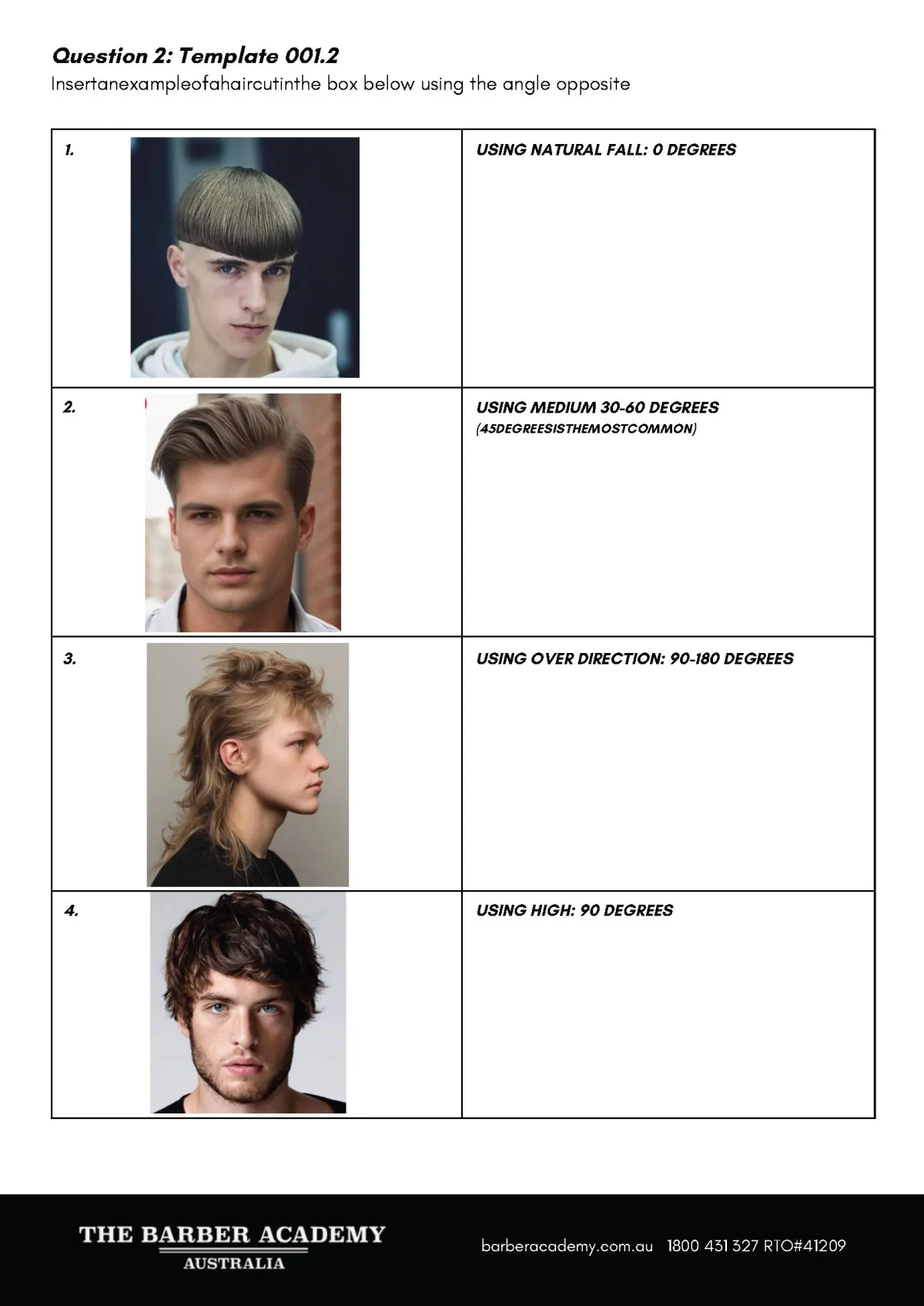
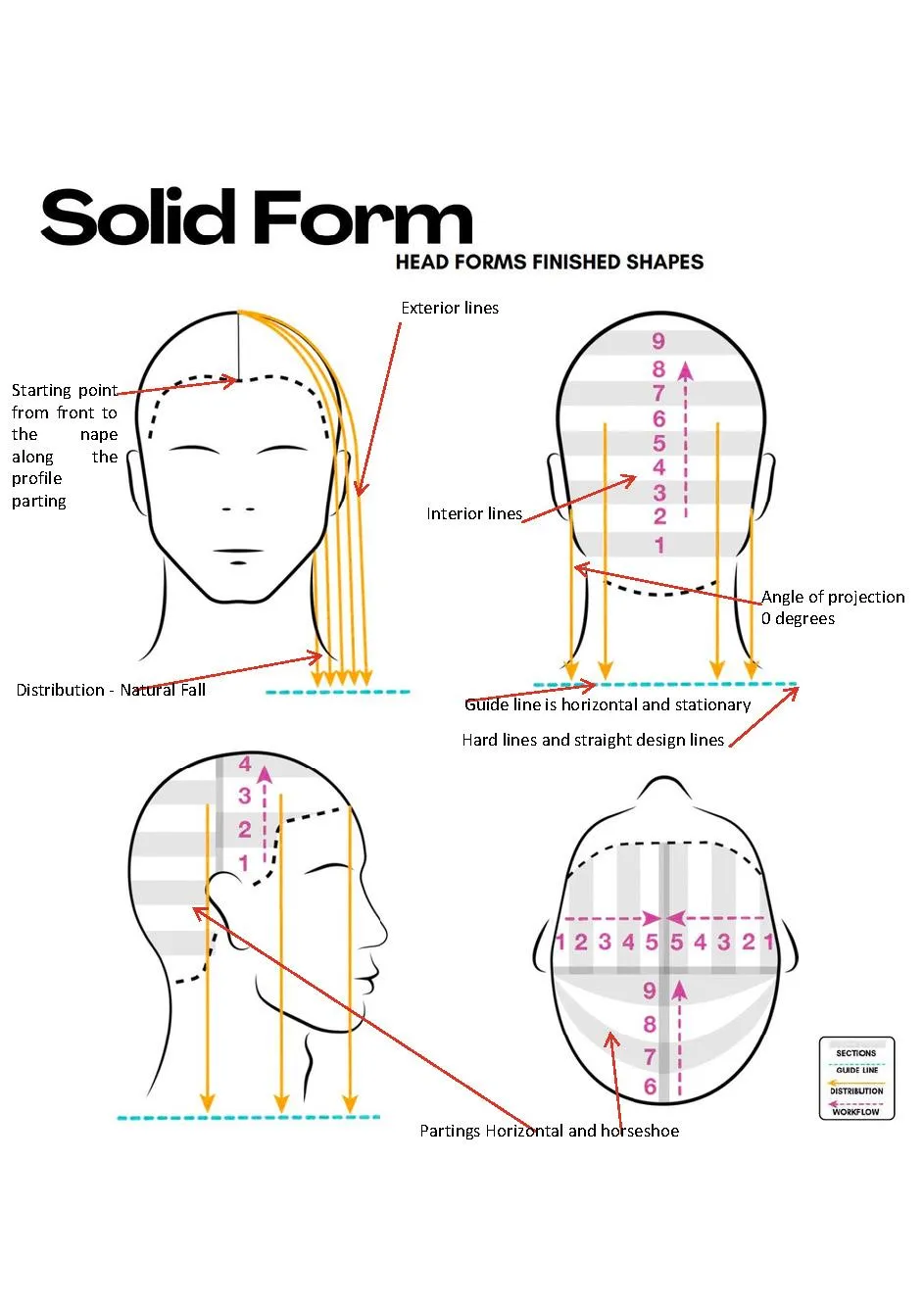
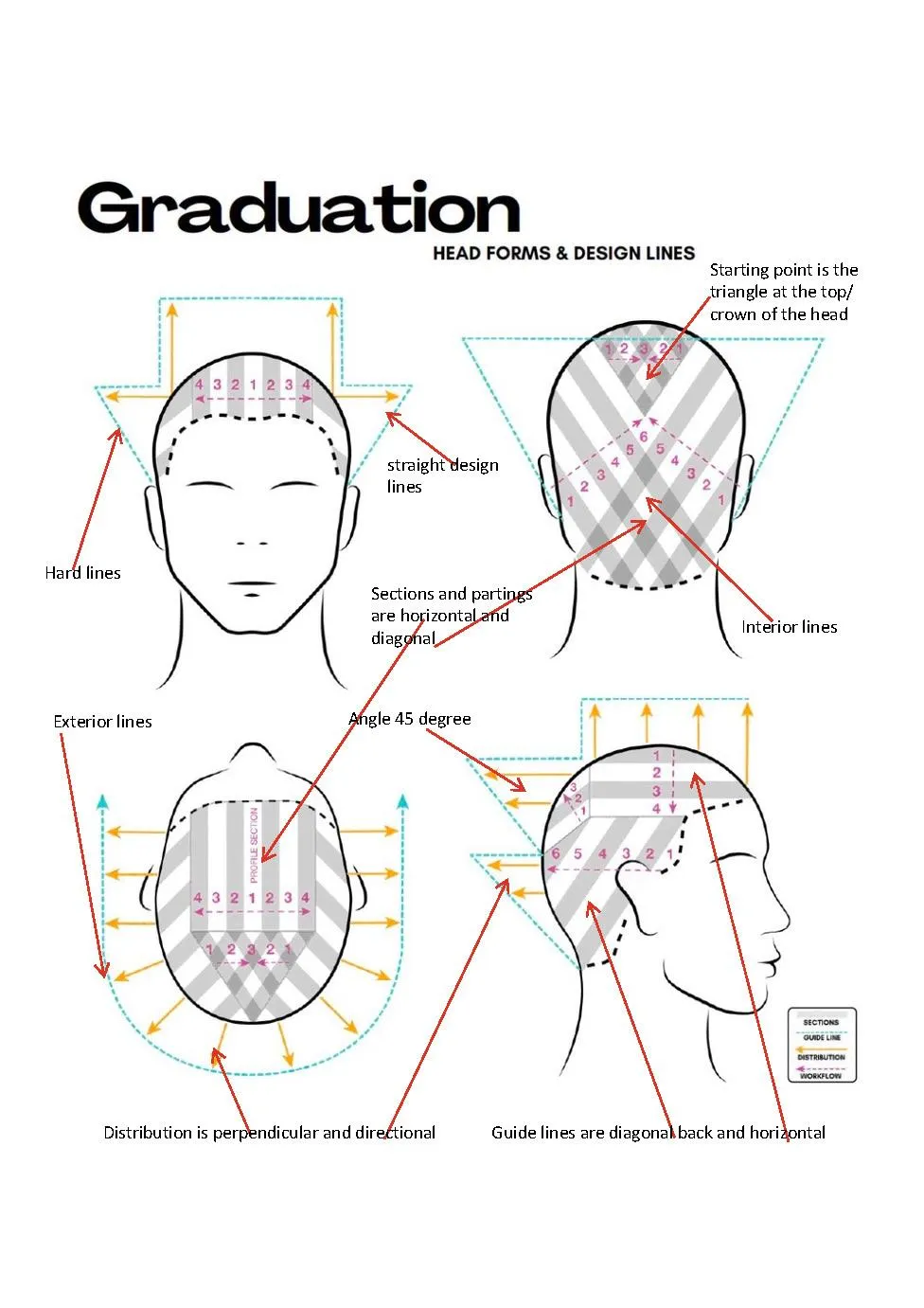
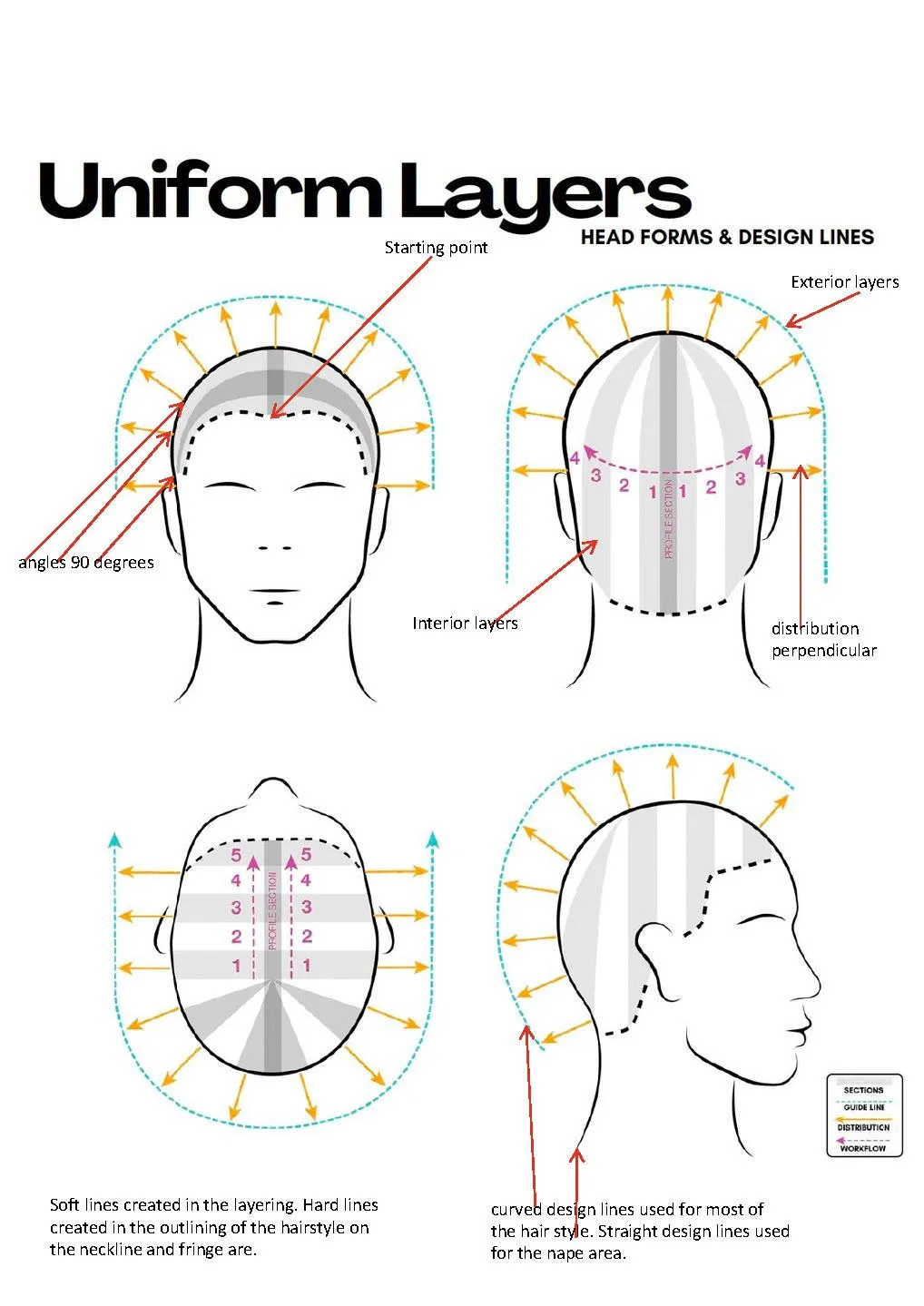
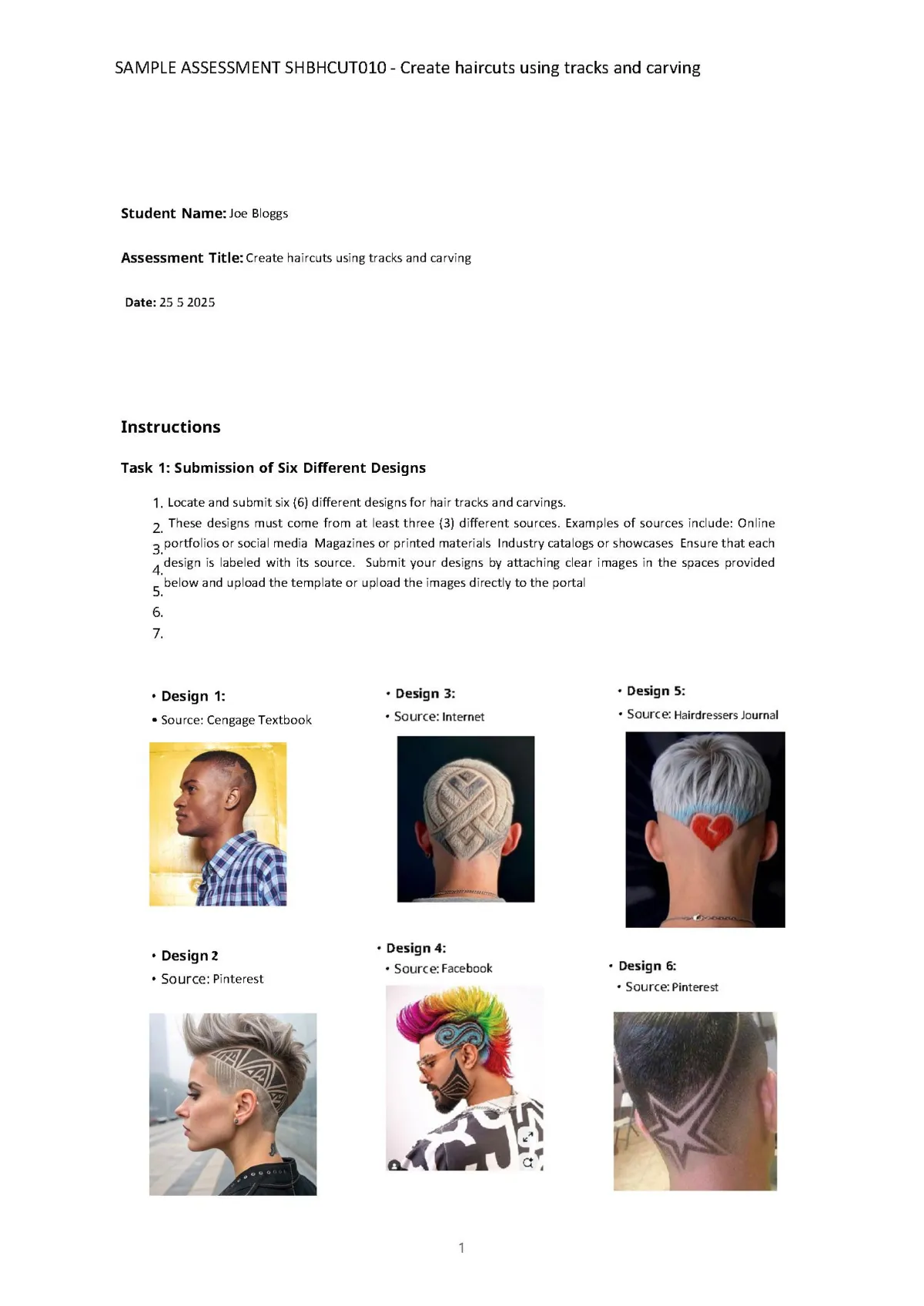
ASSESSMENT SAMPLE SHBHCUT010
In order to assist the students in completing and uploading all the necessary evidence, see below SAMPLE assessments.
These are in the ASSESSOR benchmark part of the assessment in the online portal in axe.
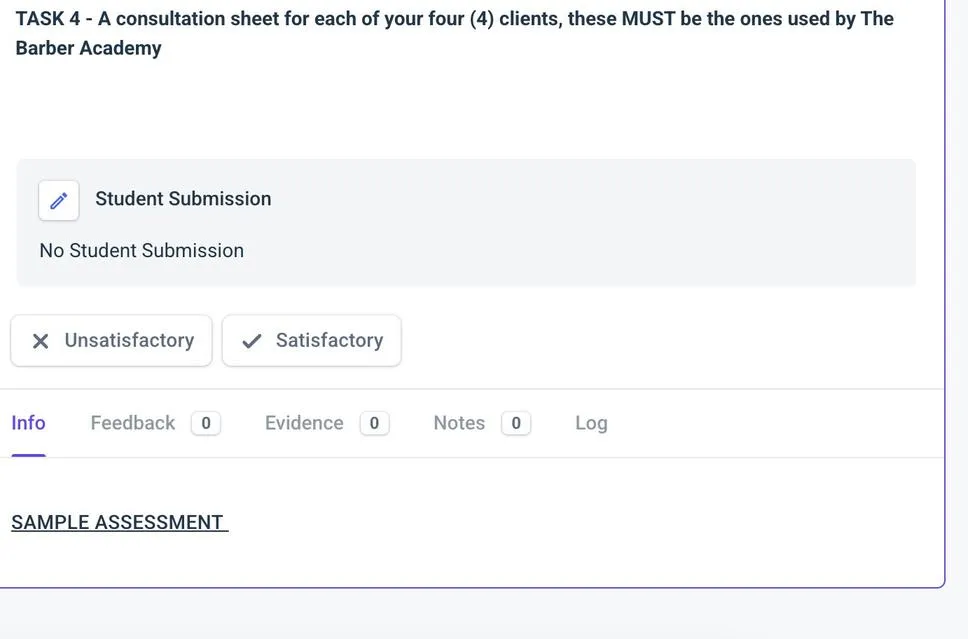
If you go in to axe and look at any of student and click on their assessment 2 of SHBHCUT010 and click on it as if to mark it you will see in
the info part the option to click on SAMPLE ASSESSMENT.
The student has the option to fill in a template that may help them



ASSESSMENT SAMPLE SHBHCUT009
SAMPLE ASSESSMENT SHBHCUT009 - Cut hair using freehand clipper techniques
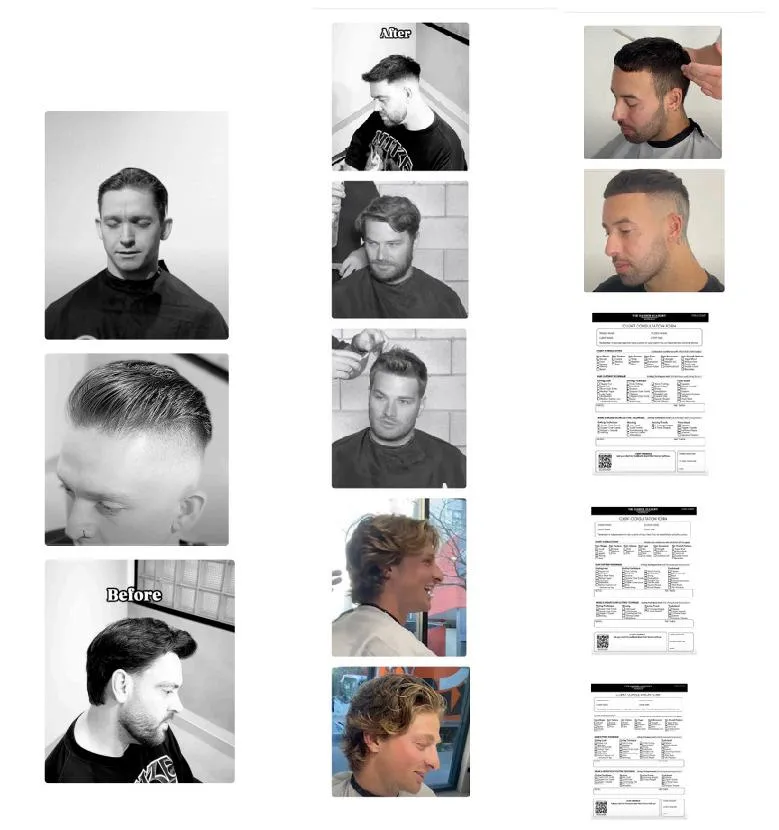
For this assessment, the students MUST complete 4 different looks on 4 different clients. The Students MUST also cut four
different lengths using different-sized clipper attachments across the haircuts.
Client 1 MUST have a square-shaped neckline (short back and sides cut) BEFORE and AFTER Photographs
Client 2 MUST have a square-shaped neckline (taper fade cut) BEFORE and AFTER Photographs
Client 3 MUST have a faded and blended neckline (faded cut) BEFORE and AFTER Photographs
Client 4 MUST be a flattop curved hairline (this can be completed on a mannequin if you can’t find a client or model) BEFORE and AFTER Photographs
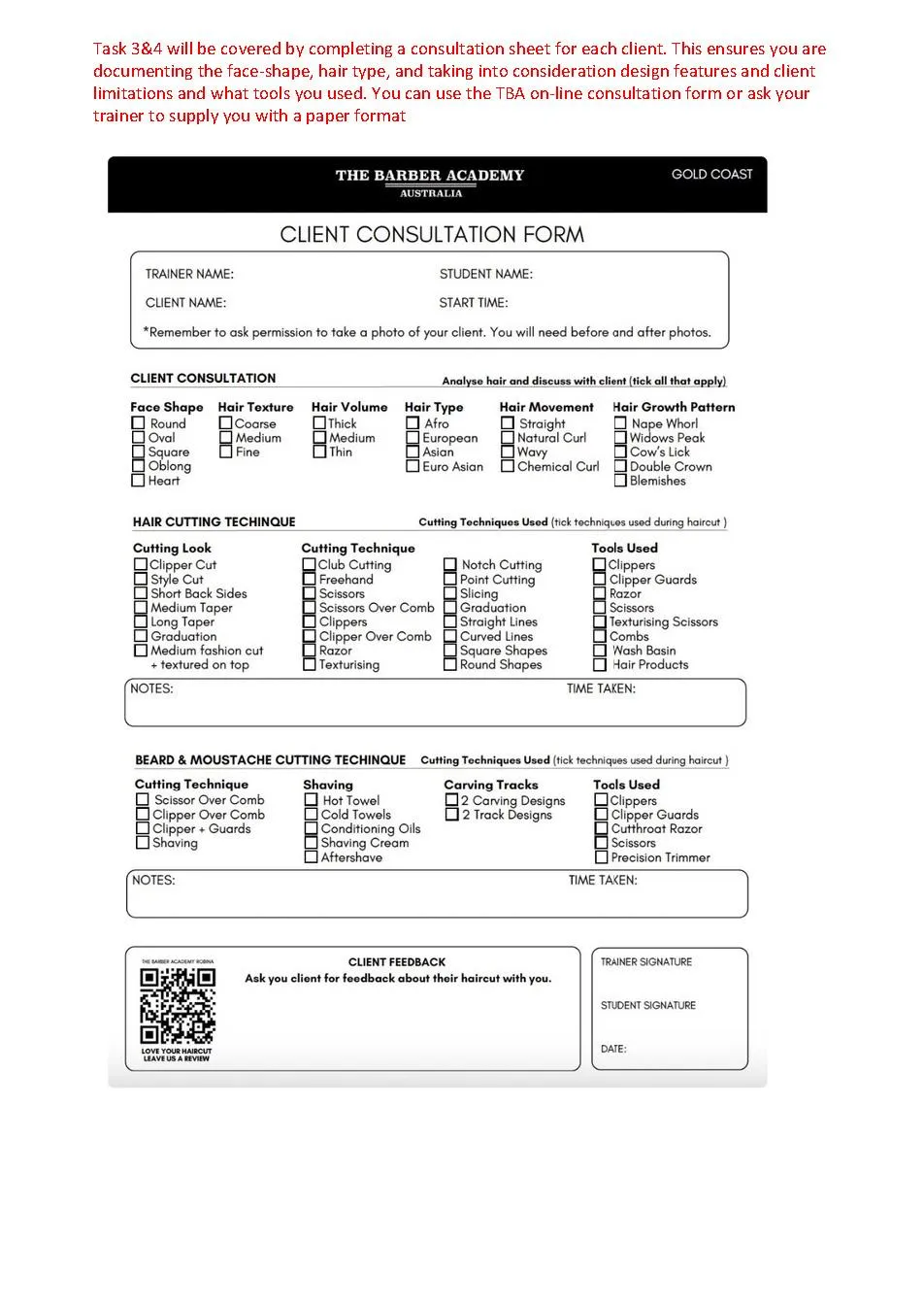
Each client will need a consultation sheet filled out for them. Students can use the online consultation form, or they can use the PDF fillable consultations. Pictures of your client, BEFORE and AFTER, must be uploaded too.
This assessment is to help students who are working in a barbershop and may not complete their work in front of an assessor. However, if a student is being observed completing ALL the necessary assessments, then there is NO need to produce ALL photographs. Flattops would need to be produced, as there are very few clients having this done, and the qualification states it MUST be completed even if on a mannequin. There is a need however, for ALL the complete consultation sheets (this would be for FFS)
ASSESSMENT QUERIES
For any assessment queries please contact student support or the compliance team
THIRD PARTY REPORTS
Third party reports are done during the very first training session before any training has commenced. The student must be new to the RTO and not had previous training by us as a training organisation. The evidence we are collecting is based on previous experience.
To inform a judgement about whether a learner has achieved competency, evidence is often collected by the assessor. However, other people (such as workplace supervisors) can also report what they see or hear to the assessor. Evidence collected in this manner is called third-party evidence (it is also sometimes called ‘supplementary evidence’).
A person collecting third-party evidence is not conducting any assessment. It remains the role of your RTO's assessor to make the judgement about whether competency has been achieved.
When developing assessment evidence within your RTO to be collected it usually falls into three broad categories:
1. direct evidence: evidence the assessor observes first-hand (e.g. workplace demonstration, work sample, questioning the applicant)
2. indirect evidence: evidence reported by someone else (e.g. third party report, workplace performance review)
3. supplementary evidence: any other evidence that can indicate performance (e.g. training records, written work, portfolios, resume)
The tips below are about the third-party evidence that is collected from workplace supervisors, peers and others to support an assessment decision.
When collecting RTO evidence from employers or other parties we often call them Third Party Reports, or Supervisor Reports. This Third-Party report is where a person contributes evidence of competency, e.g. in the case of workplace supervisors in traineeship or apprenticeship arrangements. Remember the evidence of the third party report is not to be used as a standalone. It needs to be supported with other evidence, such as assessor observations, questions, projects etc.
Reports
These reports often include an observation of the learners undertaking regular workplace tasks. Make sure you include enough information in this report that provides sufficient details of the tasks being completed. Include the date the observation took place, any behaviour requirements, and allow for feedback from the 3rd party. Now it is your role, as an RTO, or Assessor, to decide on what the evidence collected from this person will look like.
Considerations
There are several things to consider when preparing guidelines for gathering third-party evidence to ensure the evidence collected meets the rules of evidence:
- a decision needs to be made about the appropriate balance between third-party evidence and evidence drawn from other sources.
- the evidence presented demonstrates the learner has the skills, knowledge and attributes as described in the unit of competency and assessment requirements.
- does the writer of the report need to have any specific qualifications or vocational competencies such as a TAE
- the required experience of the third-party evidence gatherer
- the third-party is not making a decision about the student’s competence
- the evidence is presented in written/official form, includes the name and contact details of the third-party and can be easily verified
The best advice is to undertake a validation process before it is used and then following the collection of evidence. We suggest you nominate a period of time and then validate. This process will ensure it is practicable and you are getting the right evidence to support the student….if not, make a change, and record in your continuous improvement process.
To complete a third-party report.
Step 1. Discuss with the student and supervisor previous experience and what they have done. Gather evidence such as a reference, resume any photo evidence etc.
Step 2. Go to trainer links and select the third-party report.
Step 3. Fill in the report with all the information of conversation and evidence you have.
Example of a report (add as much detail as possible):
Spoke with the manager and apprentice today about Daniel and what he has previous experience, Daniel had passed experience working in the hospitality/retail industry and doing tasks such as unpacking stock, displaying merchandise, conducting financial transactions, providing client services, following workplace health and safety policies and procedures, looking after tools, equipment and communicating within a work team. Spoken to shop manager and they agree that Daniel is doing these tasks in the shop and can do these on his own.
Step 4. All parties are required to sign the third-party report.
Step 5. Complete the practical observation form – assessors are required to at least observe these tasks in the workplace.
Completing a third-party report is deeming the unit competent in both practical and theory. Generally, we only do third party reports for the smaller units. Please contact the compliance team regarding larger units such as Colour or Cutting units.
NOTE:
A TPR (third party report) should be completed at the first visit by a trainer AFTER they become active on for apprenticesDELTA. The signing of the training plan is the ideal opportunity to speak to the apprentice and the supervisor/salon manager/owner about any units they feel they have experience in.
Use https://training.gov.au/ to look up these units and to see if the apprentice does have the skills and knowledge to be signed off on these. The apprentice may have had work experience or worked in another shop/salon but never been signed off for anything. The supervisor/salon manager/owner can confirm that they are happy to sign off these units and you as an assessor can mark the apprentice off on the unit by completing the practicals. If there are 6 practicals, then 6 must be signed off. The shop can sign off some, but if you sign any they MUST be AFTER the student became active on DELTA. These are uploaded to the student’s portal in the appropriate practical assessment.
Remember, when signing off a unit via third party – you MUST have the approval and signature of the shop/salon supervisor. The SWOP book must signed as well for the units you are marking off.
ASSESSOR SIGNING OFF A THIRD PARTY
Signing off in aXcelerate. The Dates of the third party MUST be the dates of the first training session and the dates the apprentice was active on DELTA.
EG. Apprentice was active on 7/1/25 and the trainer conducted first visit 10/1/2025.
In the student aXcelerate profile. click on the intake, find the unit the trainer has completed a third party report.
Click on the unit, update the start date to the active date on DELTA and end date the date of the report.
EG. Full time student - follow the above process, however, this will be conducted in the academy with the dates of their start date reflecting their first day.
Step 1. Receive Third Party Report and signed SWOP pages from “[email protected]"
Ensure the report meets the requirements of a Third Party Report - if you are unsure, please check with the compliance team.
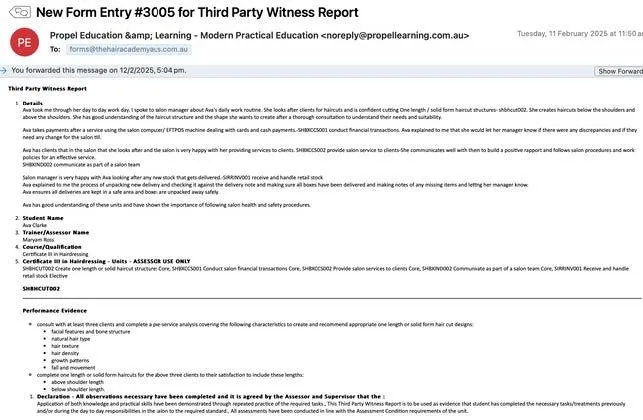
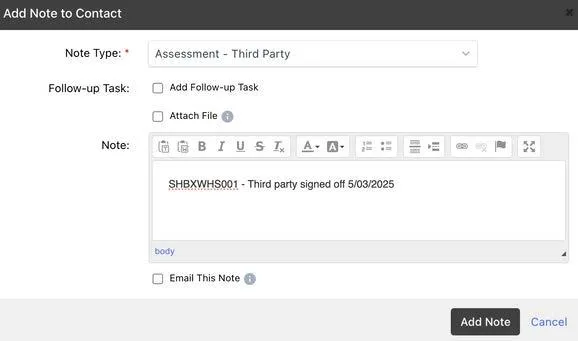
Step 2. Save Third Party Report and SWOP pages in Google Drive and upload into the student Axcelerate Profile - Under the note;
Assessment -Third party
Step 3. Go to Student Intake and click on the unit to be third party and mark as “C”
Step 4. Check dates and sign off, add an internal comment - Third Party
Step 5. Submit

MARKING UPLOADED SWOP PAGES - TRAINER/ASSESSOR
Propel and The Barber Academy and The Hair Academy are regulated by The Australian Skills Quality Authority (ASQA). ASQA is the national regulator for Australia’s vocational education and training (VET) sector, ensuring nationally approved quality standards are met.
Propel and The Hair Academy and The Barber Academy are subject to auditing of its operations by the Australian Skills Quality Agency (ASQA). Propel and The Hair Academy and The Barber Academy will provide a service that complies with the Standards for Registered Training Organisations (RTOs) 2025.
ASQA uses the Standards to ensure nationally consistent, high-quality training and assessment across Australia's vocational education and training (VET) system. Compliance with the Standards is a requirement for all ASQA registered training organisations. ASQA uses the Standards to protect the interests of all students in Australia's VET system. The Standards guide nationally consistent, high-quality training and assessment services in the vocational education and training system.
Step 1. In Axcelerate Dashboard - Click on ONLINE ASSESSMENTS - ALL
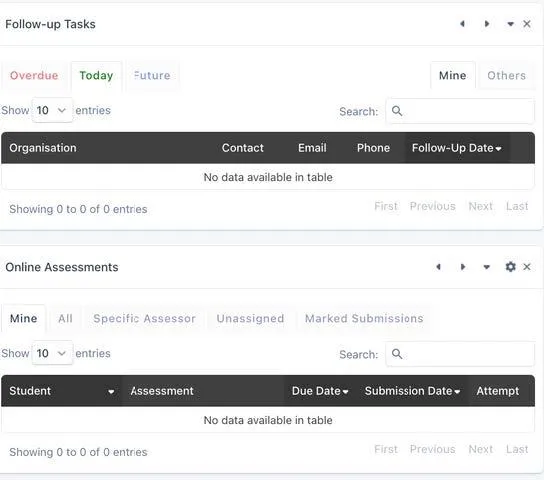
Step 2. Click on the practical that needs marking.
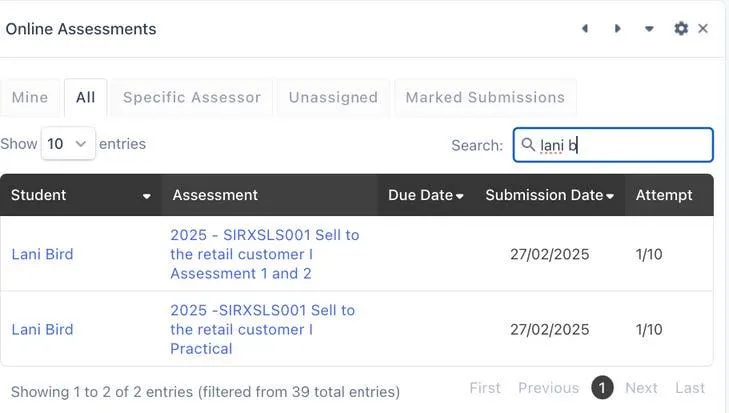
Step 3. Trainer/Assessor MUST view the SWOP book pages that have been submitted.
Checking all the correct information, dates, boxes, ranges, correct unit and signatures are correct and matching.
If so, mark as “Satisfactory” and finalise.
If the SWOP is being marked “Not Satisfactory” please notify trainer to follow up on student to re-upload with rectified SWOP pages.
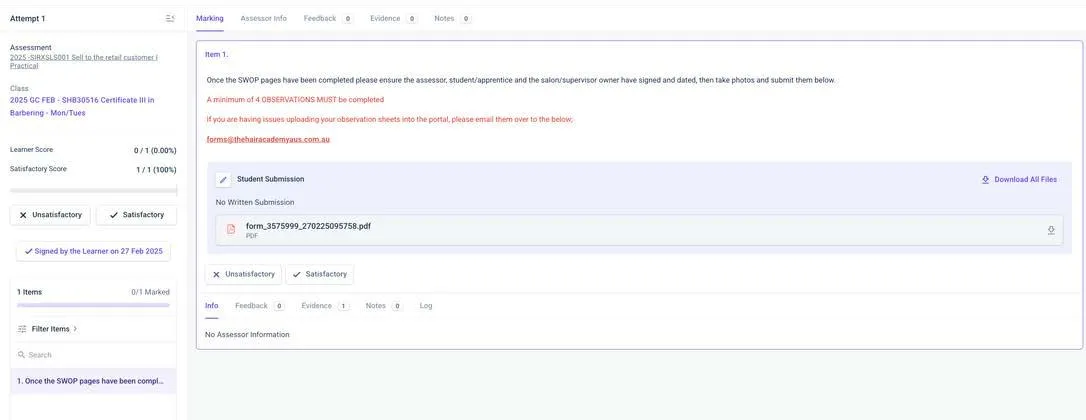
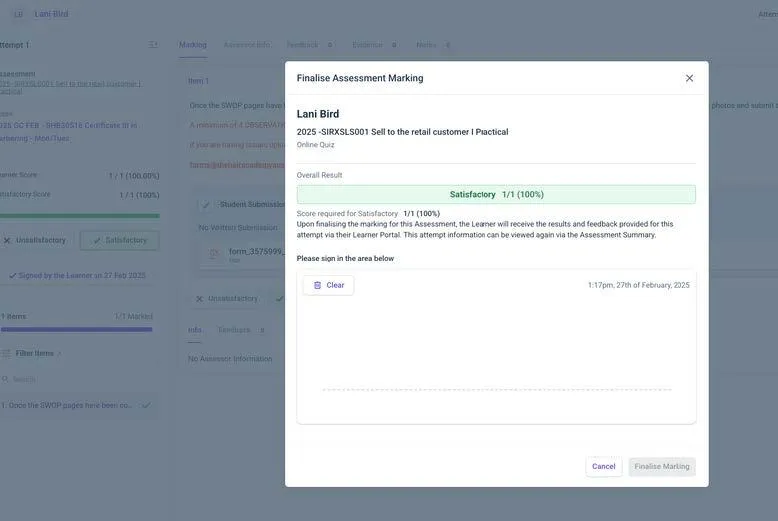
Step 4. Trainer/Assessor MUST check the student profile and check that the dates match and if there is anything outstanding to finalise the unit and add note and send to trainer.


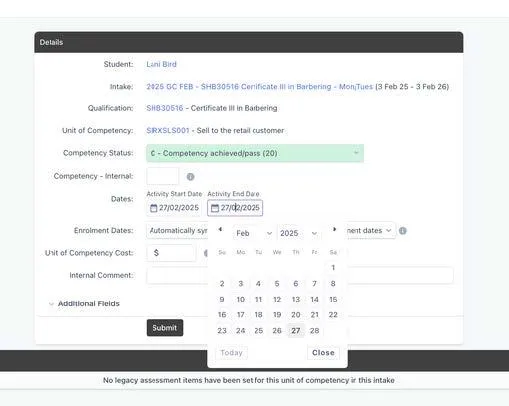
IMPORTANT: If the unit is now finalised and the SWOP dates were signed off we
MUST check the dates in Axcelerate are matching the final date on the SWOP.
Example below shows the practical signed off and the theory not yet marked/completed. Therefore, no dates are required to be changed.

Your Example below shows the theory and the practical signed off, however the dates in the SWOP book are from the day before and not the day we marked it off in Axcelerate. This means, the assessor needs to go into the student intake.
- Click on the unit
- Update the unit end date to reflect the date in the SWOP book.
This is the Trainer and Assessor responsibility to ensure dates are correct in Axcelerate. Remember to notify the trainer of completion of unit and or if any theory is required to be completed to finalise unit. (If you are NOT sure, contact compliance or administration)

CONSULTATIONS FORMS - UPLOADED INTO THE LEARNER PORTAL
Consultation forms form part of the training and assessing/evidence and portfolio.
In each service unit the student is required to complete the minimum number of consultation forms form/photo and upload into their student portal under consultation for that unit.
Dates to match SWOP book and ranges.
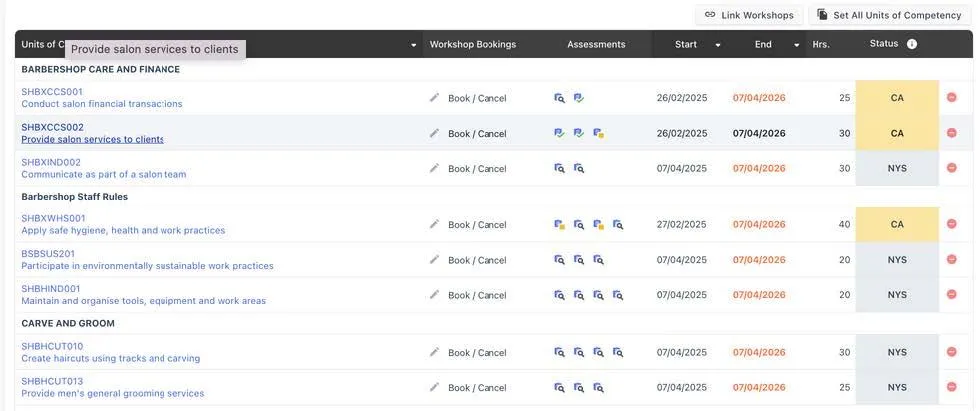
If you hover over each magnifying glass it will identify the consultation for the unit.
NOTE: Units cannot be marked COMPETENT if the anything is outstanding next to the unit. ALL magnifying glasses must be marked with a green tick for the unit to change from CA to C
Consultation forms must be uploaded separately into the correct unit. When a practical unit is finalised this is when the student should be submitting consultations and SWOP pages.

The process is similar to the student uploading their SWOP pages into the portal.
Step 1. Login to learner portal
Step 2. Click learning plan
Step 3. Click on the unit and consultation section
Step 4. Upload consultation form
Note: Consultation forms are required to be uploaded into each seperate unit. If the student is having issues with uploading their consultation, they can email it over to [email protected]
Competency questions and tools of assessment
Note: Trainers can use professional judgment - as long as the student has an understanding of what the question has been asked, and the answer is in the right direction of what is being asked, they can be marked “Satisfactory’”.
The theory does not need to reflect word for word the benchmark/factsheet.
This information must be documented.
Verbal Questioning (this can only be done when sitting with the student) - If the student's answer does not reflect that of the benchmark answer however it is clear based on your professional and industry knowledge that the Student has an understanding of what the question
has asked, then you may choose to question the student to confirm their understanding and prompt them to expand their answer.
1. Trainer to sit with the student and discuss the theory/practical
2. Trainer to document word for word the student explaining their answer. If this is for a practical component, document in the student SWOP on the unit. If this if for the theory component, write this in the note section on the student assessment for the question.
Professional Judgement - If the student's answer does not reflect that of the bench mark answer however it is clear based on your professional and industry knowledge, that the Student has an understanding of what the question has asked then you may make a comment on the note section in the theory portal as ‘"Evidence Section". Providing the Students response meets that of the unit’s element/required knowledge or skill. Refer to the training package guide on training.gov.
Go into the student assessment and make note of professional judgement under the note section "EVIDENCE"
Indicate the question number and the Student's answer given. Reasons may include:
Student has demonstrated the required knowledge for this question. Knowledge has been
covered for element 1.3
It does not reflect the benchmark answers as information gathered for the response has been
sourced from an alternative resource.
Competency questions: https://docs.google.com/spreadsheets/d/1ovjmw5UcixDzY3X6F4qAGUMzc5k9J5E7/edit?gid=1032403160#gid=1032403160
RPL PROCESS
XXX
PLAGIARISM
It is Propel’s responsibility to ensure that students are informed that breaching the plagiarism or cheating codes are unacceptable. The trainer shall monitor and review the plagiarism process as part of our continuous improvement strategy.
Plagiarism shall be explained to new Staff and Students at Induction and should be reminded to all Students upon commencement of a new unit. The Trainer is to remind Students that plagiarism is not acceptable and remind them that upon submitting each of their Assessments, they are confirming they are submitting their own work.
Refer Students to the Student Handbook about misbehaviour and ensure they are aware that plagiarism can lead to suspension and finally to cancellation of enrolment. It is important to stay consistent and treat all Students in the same way when dealing with plagiarism.
If Trainers or Assessors suspect that plagiarism has occurred, it shall be addressed by ensuring that all information is recorded.
a. From student’s Axe profile:
i. Select: Add Note
ii. Note Type: Student Compliance
iii. Note: Detailed information regarding suspicion of plagiarism
iv. Attach File: Supporting documentation.
v. Select: Email This Note
vi. Email Note To: The Compliance Team and Course Coordinator.
vii. Select: Add Note & Send Email.
The Operations Manager and Team Leader must be informed of the allegations in sufficient detail to be able to respond appropriately. The student will be contacted and a meeting will be conducted where they can invite a support person.
The student will be advised of their rights under the policy and treated justly. For definitions, penalties, and more information on plagiarism, please see the Student Handbook.
ASSESSMENT RESULT APPEAL
Initial Appeal
If a student is dissatisfied with a decision made in relation to an assessment item, they are required to notify their assessor in the first instance.
1. Receive notification from student that they wish to appeal an assessment result.
2. Review and re-assess the students’ work adding notes to the original Student Assessment. Feedback providing a written report regarding the re-assessment and outlining the reasons why the assessment was or was not granted.
a. If reassessment result is Satisfactory then save the updated checklist
i. File Name: yymmdd Student Name unit code – SAT - REASSESSED
ii. Follow the normal procedure to record result.
b. If reassessment result is unchanged (NYS or CA):
i. Go to student Axe profile
1. Select: Qualification/Intake
2. Select: Template
3. Template: Initial Appeal
4. Select: Submit
5. Complete the required information
6. Select: Save / Email
7. Attach file
8. Cc. email to Compliance team
9. Select; SEND
Formal Appeal
If a student is still dissatisfied with the result of the reassessment, then they are to lodge a formal appeal within 30 days by contacting administration for an Assessment Appeal Form to be sent to them.
Compliance issuance
When a students qualification is completed or withdrawn the administration team will receive a workflow notification from aXcelerate.
Step 1. Compliance team will receive an email from admin "Ready for Compliance Review for Issuance"
Step 2. Find the student in aXcelerate and go into the "Qualification/Intake"
Step 3. In Template, search "Issuance Report"
Step 4. Tick the relevant box for "Full, Partial or Withdrawn/Cancellation"
Step 5. Check all unit of competency to ensure all theory and practical evidence is valid and finalised.
In the barbering qualification, check units SHBHCUT010, SHBHCUT009, SHBHCUT001 & SIRRMER001.
Step 6. Check for the unit SWOPs, picture evidence, consultation forms and dates are correct.
Step 7. Tick YES if there is a UOC
Step 8. Put any comments if there are any errors found. IF there are any errors found, check with the trainer to follow up on any additional missing evidence.
Step 9. Initial and date
Step 10. Copy ‘yymmdd Student Name Issuance Report - ASSESSOR.’ & save onto drive in the students folder
Step 11. Send this to compliance - Add note on students profile titled Trainer - Issuance Report SHB30516- Completed Ready for review & add the file.
Step 12. Compliance- go back into students qualification, go to Template find Issuance report
Step 13. Fill in Part D of the Issuance Form
Step 14. Save this onto the drive in the students folder with ‘yymmdd Student Name Issuance Report - COMPLIANCE’
Step 15. Add a note title Compliance - Issuance Review
SHB30156 Completed reviewed and read for issuance & add file and send to Admin team to finalise issuance.
NOTE: If the student is an apprentice or trainee (FUNDED) we may be able to claim nominal hours for training.
Apprentices/Trainees that are withdrawn, the end date MUST reflect the date they came off DELTA - this will be noted in student aXcelerate profile.
AUDIT PROCEDURE
All Trainers are expected to have their records at an audit ready state by the end of each week as ASQA and/or DET can request an audit at any time of the RTO and its records.
The records can include:
a. Student assessments
b. Student records
c. Observation forms
d. Training plans
e. Language, literacy and numeracy indicators
f. Induction records
g. Student attendance records
h. Trainer Matrix, qualifications
Outside of an audit Trainers and staff should not be contacted by ASQA or DET, but if they are, please inform the CEO immediately. During an audit all staff should be available to answer questions from the auditor/s and they should do so openly and professionally.
RESOURCE VALIDATION
This should be done when marking assessments or if a student complains that they don’t understand a particular question.
Trainers and Assessors are encouraged to monitor the assessment tools and record any information to assist with validation. Any comments are to be recorded on the FORM - Interim Validation in Axe. (Please note this is in addition to the Product areas own Validation schedule which is ongoing and into which the interim assessment validation report feeds)
From Trainers Axe Profile
a. Select: Action/Template
b. Category/Template: Training Plans / FORM - Interim Validation
c. Select: Submit
d. Complete required information
e. Select: Save / Email
f. Email to: The Compliance Team
g. Select: Send
ASSESSMENT VALIDATION PROCESS
Assessment validation is a quality review process to check that an assessment system consistently produces valid, reliable, sufficient, current, and authentic evidence for making sound judgments about whether training requirements are met. It involves reviewing a sample of completed assessments and the tools used to ensure they comply with principles of assessment and the rules of evidence. The process aims to identify areas for improvement in assessment tools, processes, or outcomes, and to ensure the assessment practices are fair, flexible, and relevant to industry needs.
Information on Assessment and Moderation https://www.axcelerate.com.au/vet-express/assessment-validation-for-your-rto
See below process.
1. Choose a student from the validation schedule in any of the following Qualifications (SHB30416, SHB30516, SHB20216)
2. The Validation Schedule can be found here 2025 VALIDATION SCHEDULE
3. Ensure you use the template FORM Student Assessment Validation Judgement _V2
4. Log into axe.
5. Search for the chosen student
6. Go to the chosen student’s profile and click on the student’s qualification
7. Click on TEMPLATE and click on the dropdown option FORM Student Assessment Validation Judgement _V2
8. Complete the form as instructed
9. Put yourself down as the Validator and the person who marked the assessment as the Assessor.
10. Write down the date you are validating the assessment
11. Record whether or not the Qualification has been completed
12. Choose the unit to be validated and record by ticking the box if all the necessary requirements have been completed e.g. Appropriate feedback given if resubmission needed
13. Complete Validator comments if needed and sign
14. Print form as PDF and save to student's Google folder as yymmdd Student Name Assessment Validation.
15. Upload pdf to Students Axe profile (NOTE - Compliance - Student Compliance Report)
Send to [email protected] and suggest any follow-up action that is needed.
16. In the Validation Schedule Spreadsheet under the heading ‘date validation commenced’ write the same date as point 14
17. Under the heading ‘Validator’ write your name
18. Under the heading ‘Outcome’ Write whether the assessment was satisfactory or not yet satisfactory
19. Under the heading ‘Comments’ write and comments (if necessary) e.g. the assessor DT to look at the practical as the SWOP uploaded is wrong even though marked as correct.
20. Under the heading ‘rectified’ write what has been done to rectify the issues you comment on (if any)



COMPANY
COURSES
RTO#41209
FOLLOW US ONLINE



Copyright 2026. Propel Education and Training Pty Ltd - RTO #41209. All Rights Reserved.