
Trainer Handbook


aXcelerate
Learner Portal
The Trainer handbook has been designed as a tool for you to use throughout the training journey. It contains all the information you need to get started and make sure that your experience is a positive, challenging and rewarding one.
The axcelerate system
aXcelerate is our Student Management System, which allows you to view and access information about your students' training including Course, Assessments, Resources and Personal Details. aXcelerate provides course progress and results for each assessment to ensure students' are on track. When you have enrolled we will create your user account and provide you with access to the Learner Portal via email.
TIP: For further information on aXcelerate click here https://support.axcelerate.com.au/hc/en-gb/articles/360000915456-Using-the-Trainer-Portal
aXcelerate have SHOTs videos online (youtube)
NOTE: Depending on your aXcelerate permissions not all actions may be applicable to your role and require management permissions.
How to login to your aXcelerate account - click here
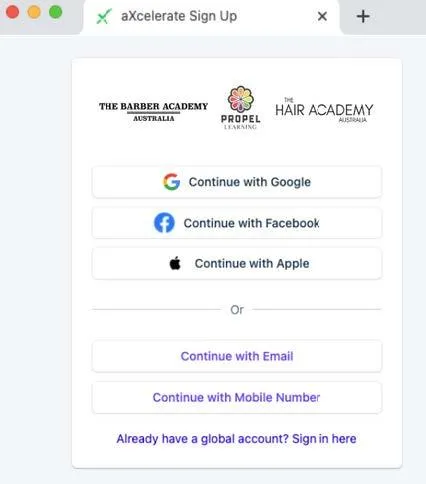
You will have received an email from the administration team to access the Axcelerate portal.
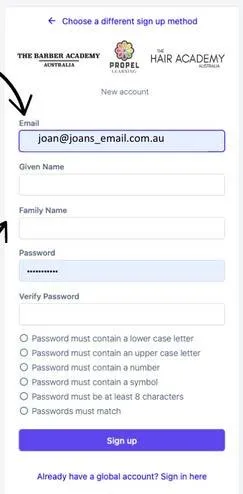
Step 1. Click on the email and click on “Create account”
Step 2. Create a username and password. Remember to write this down as it’s your own password.
Step 3. You now have full access to the Axcelerate portal.
This is where you will access all of your students, you will be able to view the student profile, see their qualification, access theory and more!
Everything needs to be documented on the Axcelerate portal. If it isn’t in Axcelerate it didn’t happen!

The axcelerate system
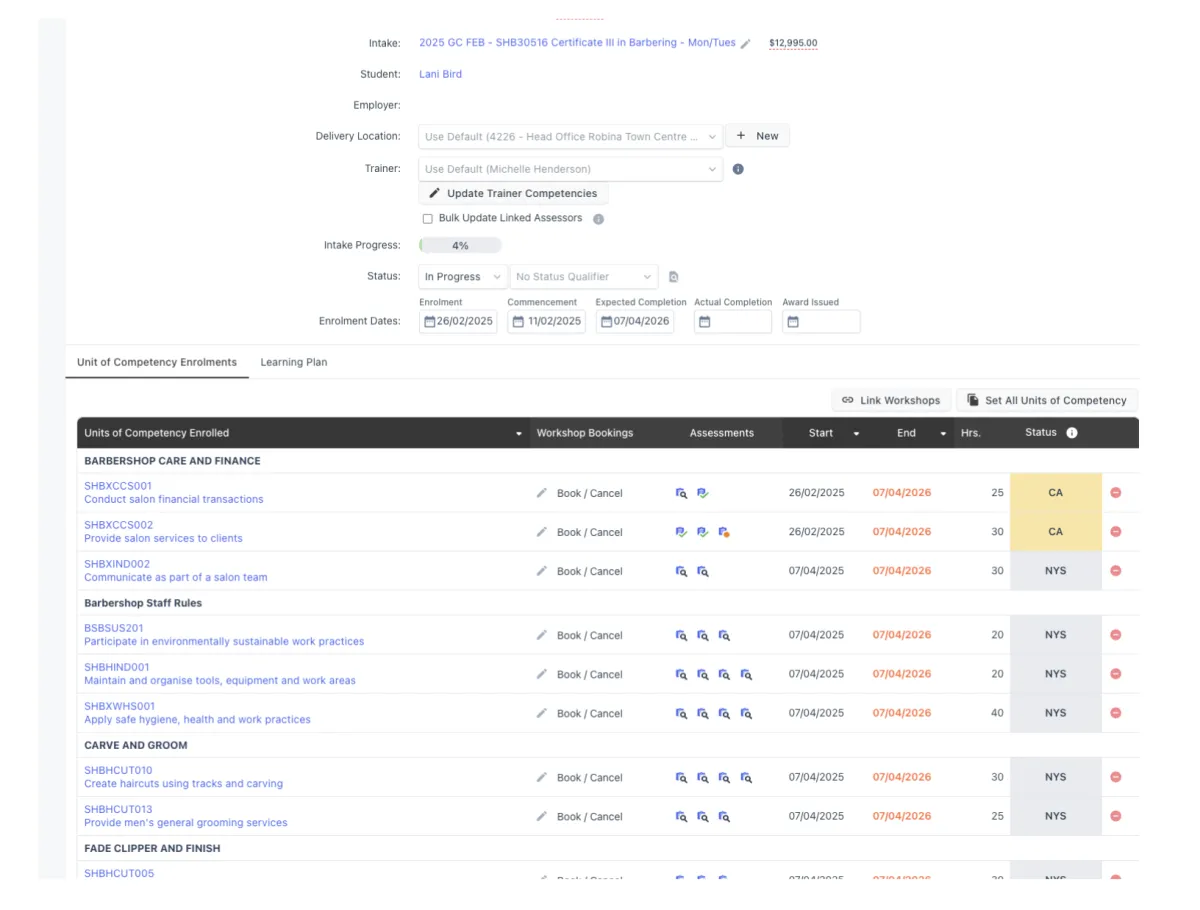
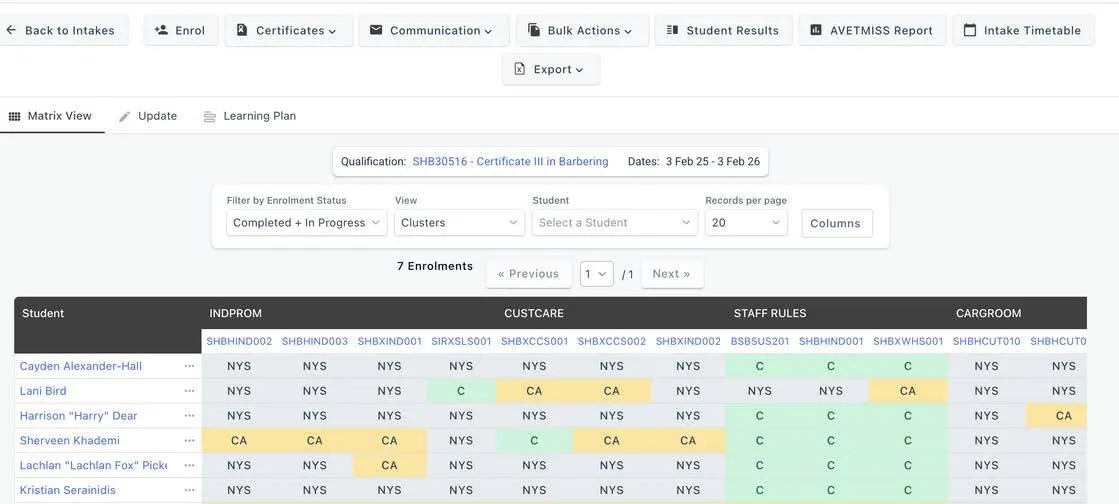
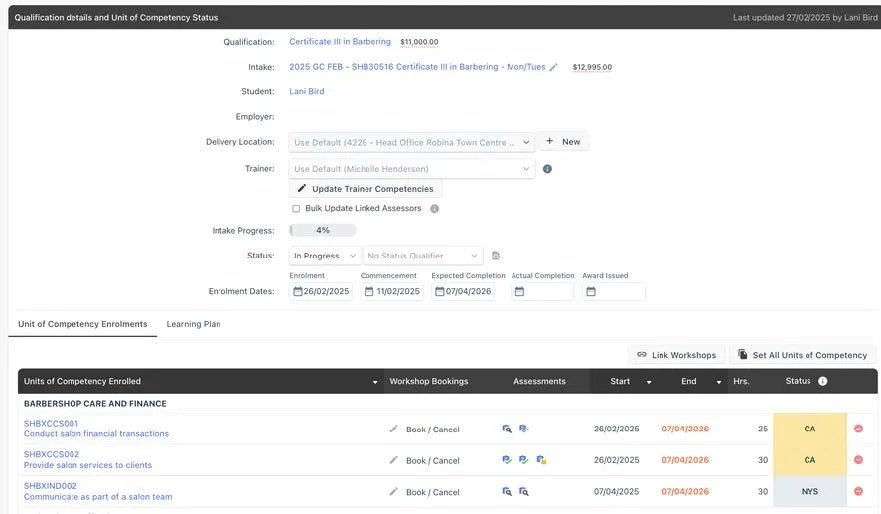
Clicking into the student intake, will take you to the units in the qualification.
In here you will be able to see if the student has any credit transfers, started any units, and
find the theory and practical component to the qualification.
You can see the expected start and end date for their course.
Identifying the unit codes;
NYS - Not Yet Started
CA - Continuing Activity
CT - Credit Transfer
C - Competent
W - Withdrawn
The green tick means that assessment has been completed, the orange dot means the assessment has been submitted pending marking and when the dot is yellow it means the student is still working on that assessment.
Students that have a credit transfer on a unit, do not have to do any theory or practical as they have been deemed competent previously.
We do NOT need to re-train.
LLN & Additional Student Support
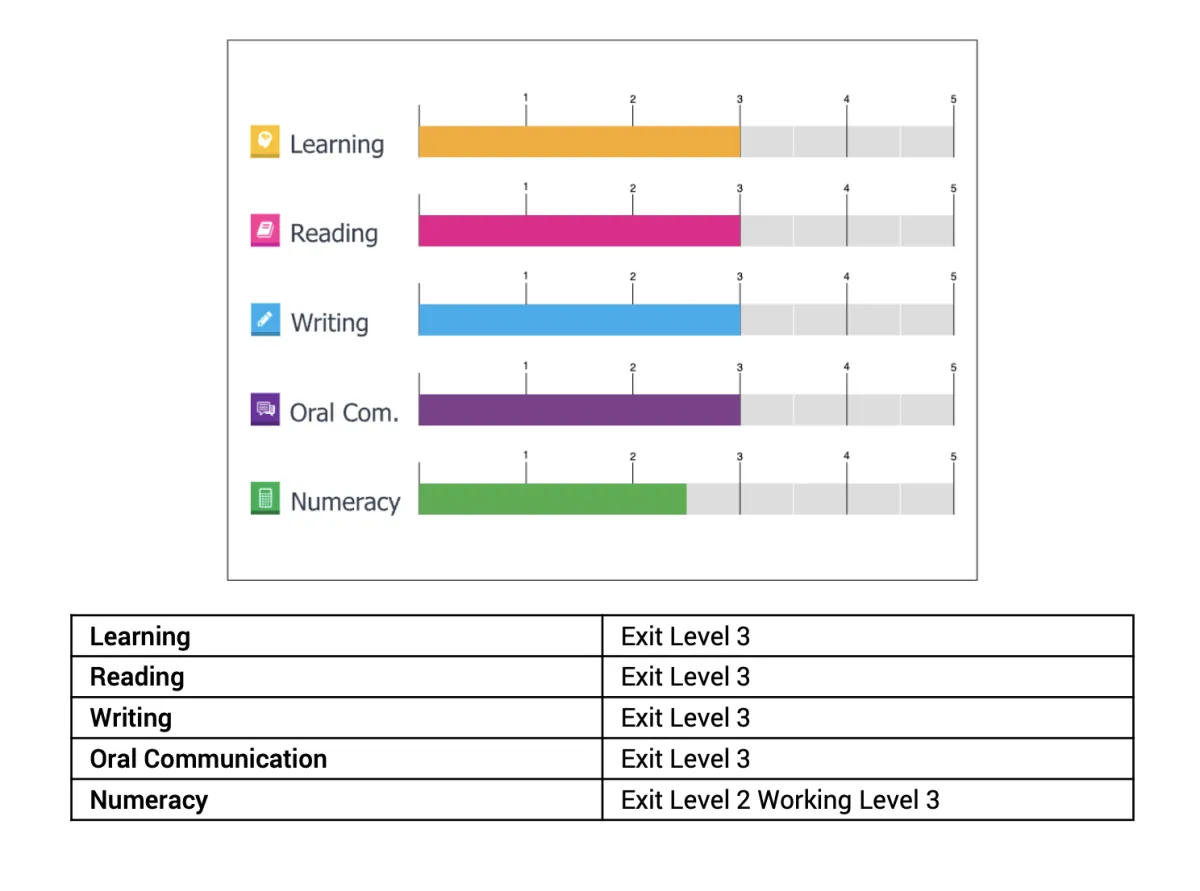
An LLND (Language, Literacy, Numeracy and Digital Skills) test assesses foundational skills in reading, writing, communication, maths and digital skills. In the context of VET (Vocational Education and Training), Registered Training Organisations (RTOs) use LLND tests to determine if prospective learners have the necessary skills to complete a qualification successfully. The test helps RTOs tailor training, identify support needs, and ensure compliance with VET regulations.
All students will be treated as equals; however, in some instances, a student may require additional support.
E.g.. Level 3 means they have a good understanding of the topic, which could be oral communication, written, numeracy, digital, etc. Anything under a 2 or 1 means they have little to no understanding.
Student Services will gather information on any additional support required for a student and discuss an action plan with the trainer to ensure we have provided the student with reasonable support. This could include more one-on-one tuition, additional days of attendance, and online sessions as appropriate.
It is up to the trainer to put an action plan in place and adapt adequately to student needs and support the student. Prior to enrolment, it will be determined if the student is capable of doing the course or not.
Bulk actions in axcelerate
In aXcelerate, you can send out bulk email/SMS. You can even add a general note to all student’s profile!
See below steps on how to send out bulk emails/sms to students. This can be used for any announcements or updates that students need to be aware of.
Bulk Emails and SMS
Trainer can send all students in an intake either an email or SMS in bulk– this will then be automatically saved on the student profile.
- Go to student profile and click on the Qualification/intake
- Click on the Intake: Eg. “2025 Certificate III in Barbering - FFS”
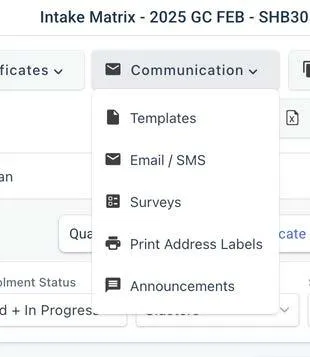
- Click over Communication and you can select either “Templates” or Email/SMS”
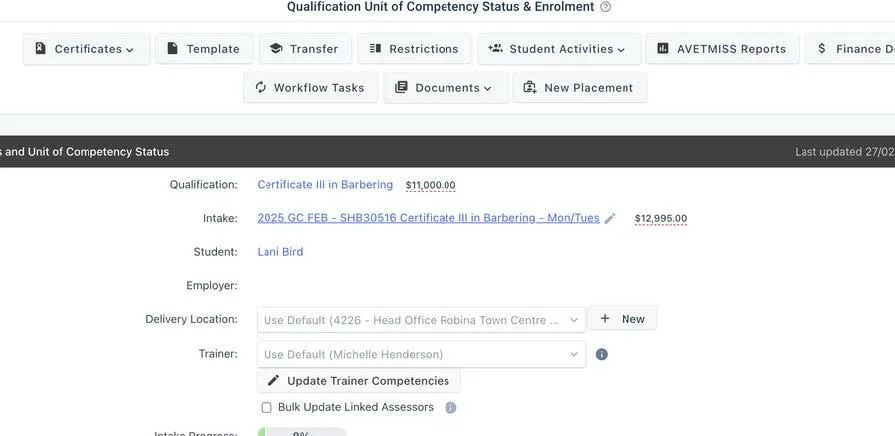
Step 1 - Click on the Intake: Eg. “2025 Certificate III in Barbering - FFS”
Step 2 - Click over Communication and you can select either “Templates” or Email/SMS”
Step 3 - You can select which ever is relevant to what you want to send to all students.
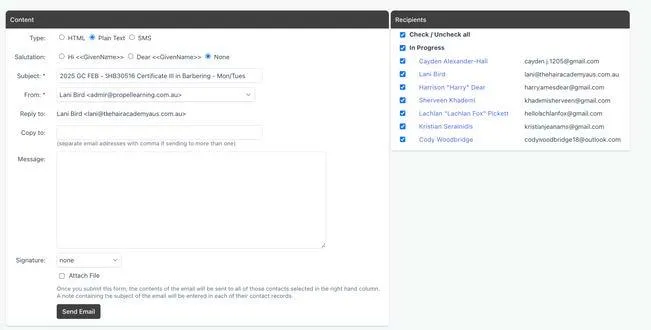
Step 4 - Enter the information required and click send email. This will be sent to all students in the intake and the communication will be saved to each student aXcelerate profile.
Bulk NOTE actions in axcelerate
Bulk Notes
The Process is similar if you want to add a bulk “note” on just the student aXcelerate profile.
Step 1. Click on “Bulk Actions”
Step 2. Click on “Add Contact Notes”
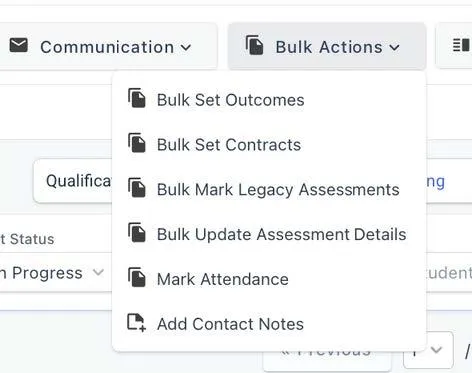
Step 3. Select contacts you want to add note.
Step 4. Complete the relevant Note Type. EG. Resources Provided
Step 5. Add in the information required for the profile for EG.
Students provided with SWOP book.
Step 6. Submit
This will automatically save into each selected student profile.
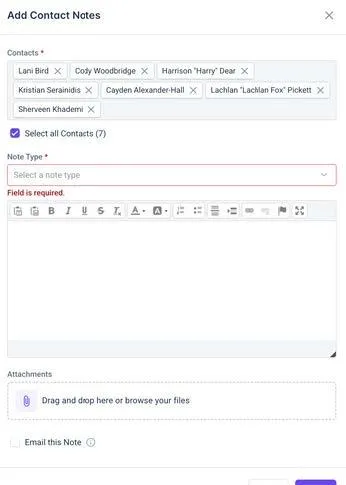
Add A note to student profile axcelerate
Any communication with a student/shop/salon/school/parent is required to be documented in the student aXcelerate profile. This can be from a phone call, text, email or face-face interaction.
To add a note on student profile.
- Go to Student profile - click add note
- The below will pop up. (Picture below)
- Depending on what the conversation is, will depend on the note type.
- For trainer contact - use the Note Type: Trainer - Contact.
- If it just a general note - use the Note Type: General
- Any student feedback - use the Note Type: Student Feedback
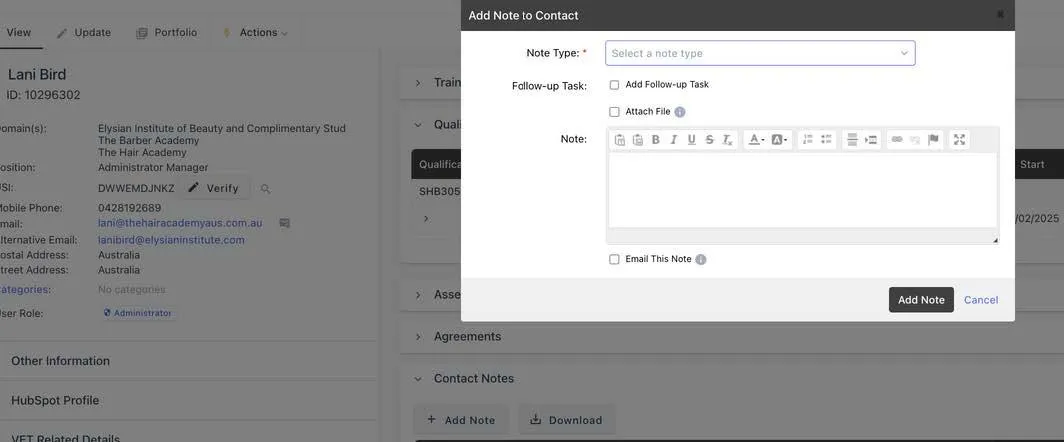

You can email the note internally to a team member if you need to keep them updated on a student.
When adding note, Click email this note and select the team member you want to share this with.
This is only seen internally and not by the student.
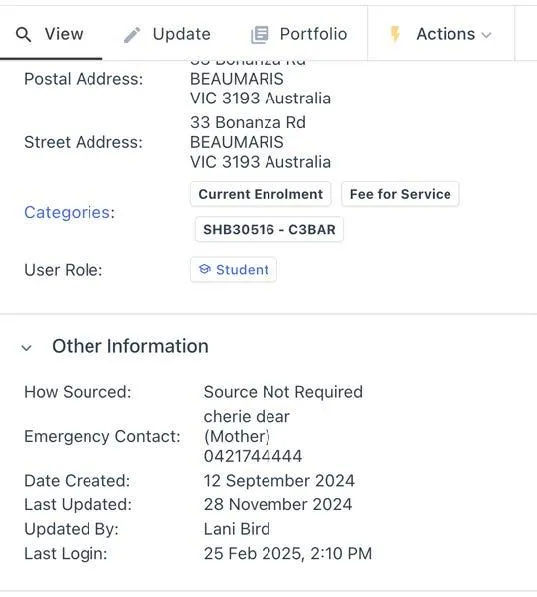
VIEW STUDENTS LAST LOGIN TO AXCELERATE
Trainers can see when students last logged into their portal. This will help identify student logging in and working through the theory.
On the students profile, under other information.
See image below.
STUDent help tool
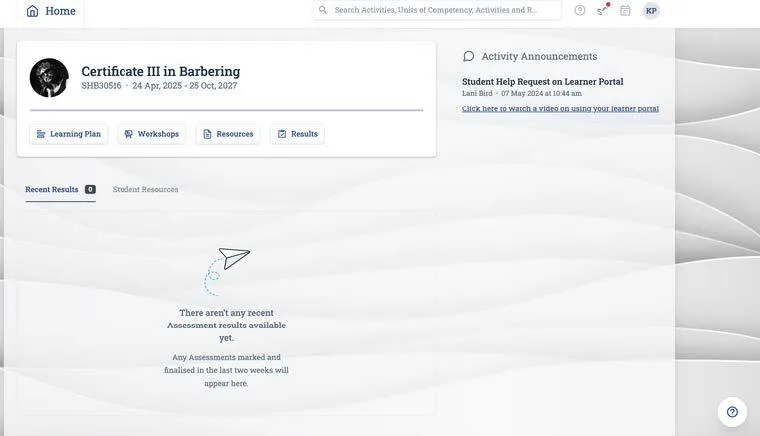
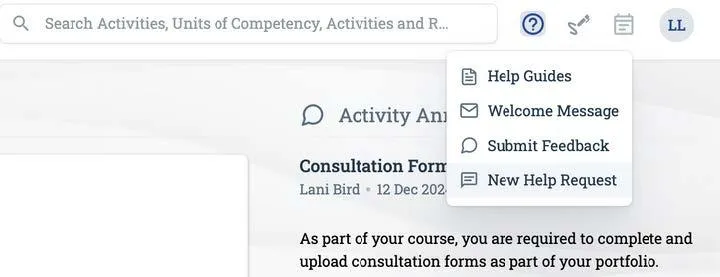
There is a help tool request in the student learner portal for students to use if they require support with theory when they are working on it from home. Direct and encourage students here so they can chat with an available assessor while working on theory from home.
- When the student logins in the portal
- On the bottom right corner and the top right hand corner is the symbol ?
- Student can click on the question mark to request help.
- The request will be actioned by an assessor in the back end (Like a chat room)
unlocking units in axcelerate
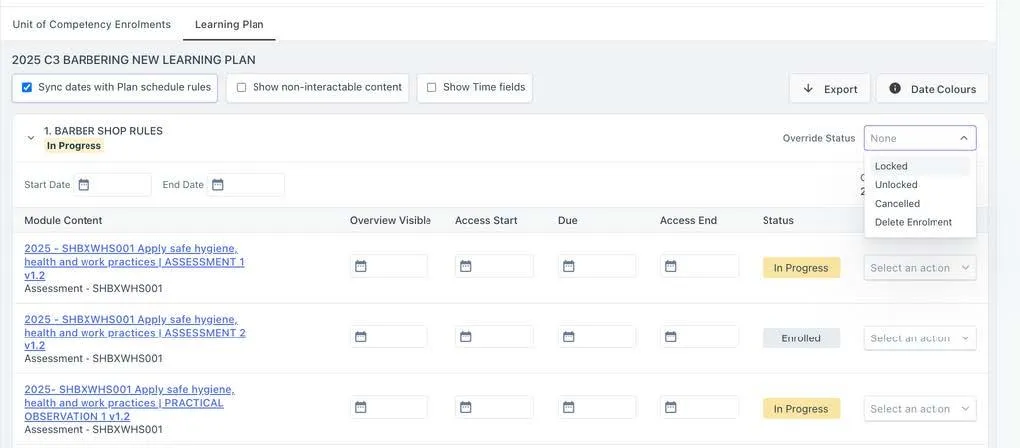
In the Learner Portal - All units should be open (unless they have a prerequisite)
Please seek approval from the team leader before opening/closing units.
If a unit is locked, you can go into Axcelerate and unlock the unit.
Step 1. Go into the student intake
Step 2. Click Learning Plan
Step 3. Look for the locked unit and select “Override Status” and select UNLOCKED
Step 4. Click Update Enrolment
Watch video: https://drive.google.com/file/d/1cOx0AFXffgEKwBwV_1W5cuIsHYNQMv1S/view?usp=drive_link
weekly trainer checklist
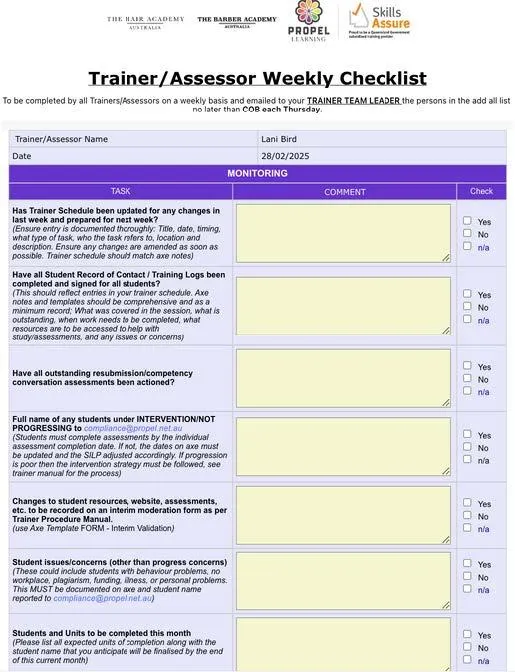
All trainers are to complete and submit a FORM – Trainer/Assessor Weekly Checklist NEW on a weekly basis and email to the Management no later than COB Thursday.
This is mandatory for the purposes of compliance and ensuring that management are aware of issues, concerns, good work practice, trainer feedback, resources any PD sessions required etc.
- From Trainers Axe Profile:
- Select: Action / Template
- Category/Template: FORM – Trainer/Assessor Weekly Checklist NEW
- Select: Submit
- Complete all fields (using any supporting information as required)
- Select: Save /Email
- Add ‘The Admin Team and Management” to recipients list (click + sign)
- Attach any supplementary information you wish to include with your report.
- Select: Send
Please ensure ALL relevant information is added at the end of each week, this is vital if resources are required and if there are student concerns etc. The trainer checklist is what the management team will look over so all information must be completed.
NOTE: Resource orders will be made ONCE a month. If they are not on the list in the checklist, they will not be ordered until the next month.
trainer tasks
Weekly RTO Trainer Tasks
1A. Training Delivery
· Deliver scheduled face-to-face or online sessions.
· Adapt training for individual learning needs.
· Record attendance and participation.
· Trainer schedule to be update and apprentice training confirmed in advance.
1B. Salon Delivery
· Prepare salon for session, towel warmer, towels folded, stations set up, music, floor tops clean.
· Allocate every student task for the session (mannequin, theory or client)
· Prepare POS till, float, reception area
· Assist all students with tasks and give constructive feedback
· Maintain salon throughout the day, clean, keep towels/capes clean folded, floor swept and tops tidy and clean.
· Prepare for end of day, bins emptied floor mopped SWOPs marked till reconciled
2. Assessment Activities if appropriate
· Prepare, mark, and give feedback on assessments.
· Validate submitted evidence against unit requirements.
· Record assessment outcomes in the LMS or student management system.
3. Student Support
· Follow up with students falling behind or struggling.
· Respond to emails/messages from students.
· Offer catch-up sessions or tutorials if needed.
· Send progress reports (if applicable)
4. Documentation & Compliance
· Update session plans and training records.
· Ensure all assessments are documented correctly.
· Maintain compliance with AQTF/ASQA standards.
5. Planning & Development
· Review upcoming sessions and prepare resources.
· Check for updates to training packages or industry changes.
· Attend internal meetings, moderation, or PD (professional development).
6. Admin & Reporting
· Log progress in the Student Management System aXcelerate.
· Report issues or risks to the Training Coordinator.
· Upload documentation to RTO systems (e.g. scanned assessments, sign-in sheets).
· Complete weekly trainer checklist – ensuring resources are up to date or required to be ordered.
7. Engagement & Continuous Improvement
· Collect student feedback (if applicable)
· Reflect on session effectiveness.
· Suggest improvements to course content or delivery methods.
Monthly RTO Trainer Tasks
1. Moderation & Validation (this will be set by compliance)
· Participate in assessment validation sessions.
· Validate completed assessments (internal or peer-reviewed).
· Review and update assessment tools if required.
2. Student Progress & Reporting
· Review student progress and identify at-risk students.
· Submit monthly student progress reports to RTO manager or coordinator.
· Follow up on overdue assessments or incomplete units.
3. Professional Development
· Attend or complete PD activities (e.g., webinars, courses, industry networking).
· Log PD hours and reflect on how learnings can be applied to training delivery.
· Keep qualifications and trainer matrices up to date.
4. Industry Engagement
· Connect with industry contacts for feedback on training relevance.
· Gather evidence of ongoing industry currency (emails, meeting notes, reports).
· Identify changes in industry expectations that may impact training.
5. Team Collaboration
· Attend monthly staff or trainer meetings.
· Collaborate with assessors or other trainers for unit delivery alignment.
· Share feedback or improvement suggestions with RTO leadership.
6. Resource Review & Planning
· Review learner resources and session plans for upcoming units.
· Identify gaps or outdated materials and propose updates.
· Plan the next month's training schedule or delivery adjustments.
Trainer links
You will be able to find all student forms and required training forms in the following locations:
Student Forms - https://studentsupport.propellearning.com.au/
Trainer Forms - https://trainer.hairandbarber.com.au
These forms have online consultation forms, third party forms for trainers and student withdrawal, extension and deferral forms.
trainer schedule
We use TeamUp as our trainer schedule to keep up to date with the team movements.
The Trainer Schedule MUST be kept up to date at all times. This is your responsibilty to ensure all information is correct and up to date.
To make an appointment in the calendar:
1. Double click on the day/date you want to schedule in training.
2. Enter the time and information of session.
3. Select the correct tag for the session.
4. Initial in the section "WHO"
5. You can make repeats in the calendar for appointments.

axcelerate from student portal and logginG in
Students will be issued login details to access their learner portal. The process is similar to when you had to create an aXcelerate account.
Students will be sent an email by the admin team from the students portal, it is important that the student checks their junk mail.
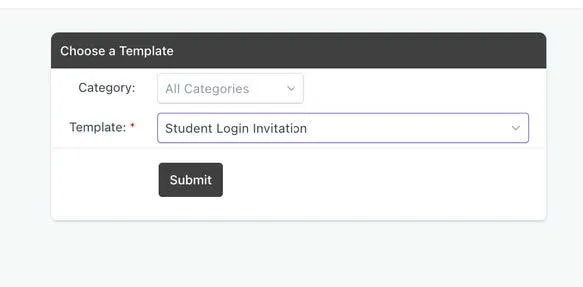
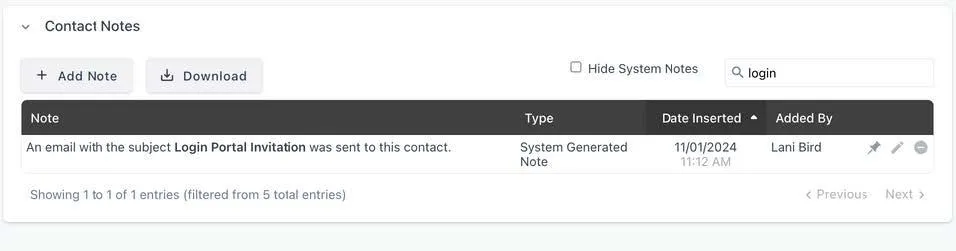
Student Login Invitation (looks like the below) You can see this has been sent and is now on the students’ profile.
NOTE: This is is only issued by the admin team.
accessing learning plan
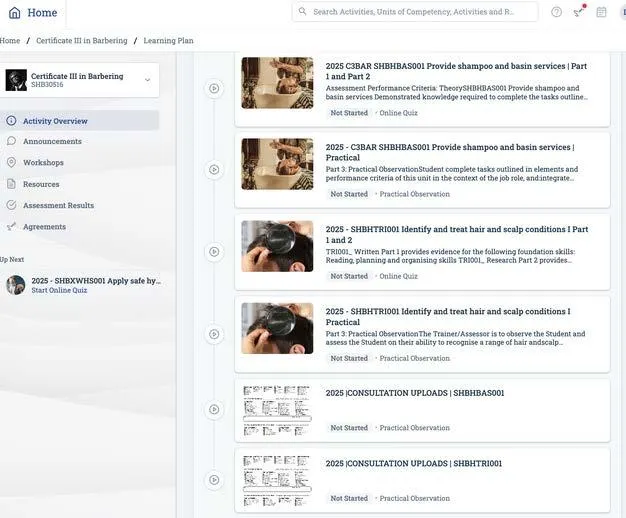
Students accessing their unit modules need to click on the learning plan.
1. Login to the aXcelerate platform
2. Click on Learning Plan
The full steps and process can be found here - Accessing modules in aXcelerate
allocating resources
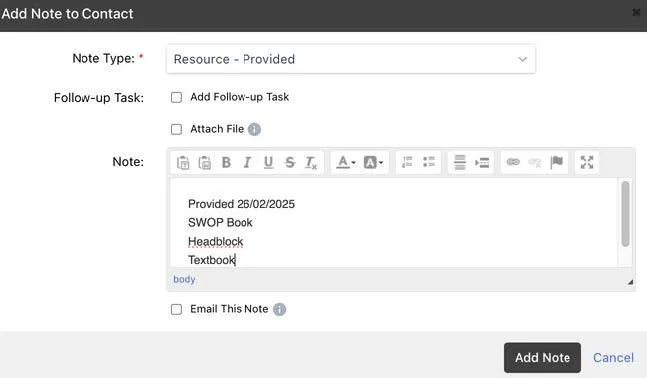
When providing a student with any resources, it needs to be noted on the student profile as a record.
THIS APPLIES TO ALL STUDENTS.
1. Go to student profile
2. Click + Add Note
3. Note Type: Resource Provided
4. Add note details: Provided items, SWOP book, Textbook, Headblock
5. Add note
Remember: You can action this as a bulk action!
student record of contact
Successful Student Contact – Must be completed the day of training
Following any contact with the student that is training or study support, including phone calls; email correspondence; practical workshop; classroom training session: Contact notes must be sent to supervisor, school and parents if applicable.
From student Axe profile:
1. Select: Qualification/Intake
2. Select: Template
3. Category/Template: Communication/STUDENT RECORD OF CONTACT
4. Select: Submit
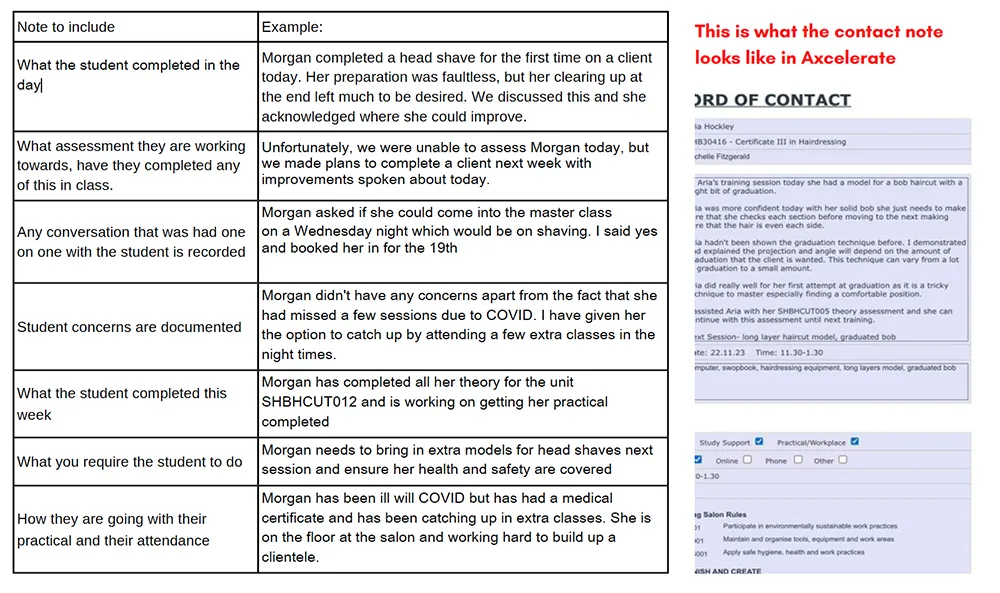
Complete required information (See table below for some examples of information to record)
1. Select: Save/ Email/ Send
2. For any additional contact with the same student throughout the week, add additional note as above (contact that is purely of an administrative nature, e.g. a text to inform trainer that student is running late, does not need to be recorded as a record of contact).
3. Update Trainer Schedule (TeamUp) for next contact if not already scheduled in calendar.
These contact notes MUST be formative, it must reflect the students progression.
Video link: https://drive.google.com/file/d/10v5BaZBAFy6HJEZs7qT9hSouhkTNdmdP/view
Examples of Contact Notes: Please ensure contact notes are detailed, this is reported for student attendance and progression status.
Should include Examples of Contact Notes: THIS CONTACT IS MONITORED AND DOES FORM PART OF THE TRAINERS WORK PERFORMANCE MEASUREMENT
students need to practice their skills
A Modern approach to Education and Learning
This students do by completing work/tasks/skills in the salon and the academy (if appropriate) and get feedback on how they have
performed.
IF they have done everything competently they will be marked off in their SWOP book.
IF they need extra practise then we can give them a consultation form to fill out (either the salon's or the academy has a digital version available ) and the student can upload it with feedback from the salon supervisor and/or the trainer on how they can improve.
Students MUST be assessed on clients in the academy - working in a garage/home is not the same as working in a shop gaining experience. This means they cannot use any evidence towards their training as they need to meet shop standards.
Students can gain experience in a salon/barber shop, however, we MUST be seeing these completed in the academy.
IF a student has the opportunity to complete work experience (paid or unpaid ) in a barber shop that they can complete PRACTICE in that setting. However there does need to be a person there that has a barber qualification or is working as a senior barber. The assessments can only be completed at the Academy, or an assessor can in certain cases that have been confirmed with management make judgements on work completed at a barbershop and evidence provided. With this being the case, I don’t think it would be possible to complete with less than 50% attendance. If that was the case, I think we are opening ourselves to students wanting to be RPL’d.
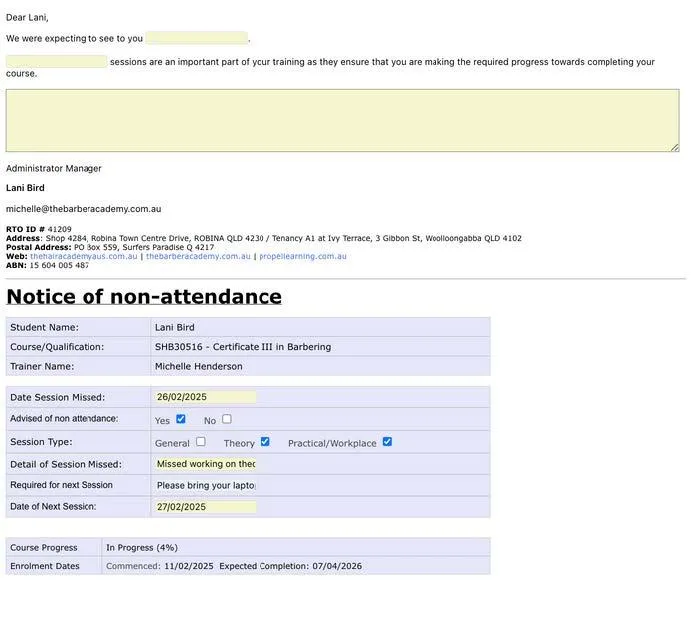
notice of non-attendance
Following any failed contact with the student including missed scheduled call or non- attendance of pre-arranged training session:
From student Axe profile:
1. Select: Qualification/Intake
2. Select: Template
3. Category/Template: Notice of Non-Attendance
4. Select: Submit
5. Complete required information
6. Select: Save / Email / Send
Remember to send contact notes to all parties (parent, school supervisor. They will be linked to student profile) Please ensure that these are sent no later than 10am the same day.
student under 18 - contact notes
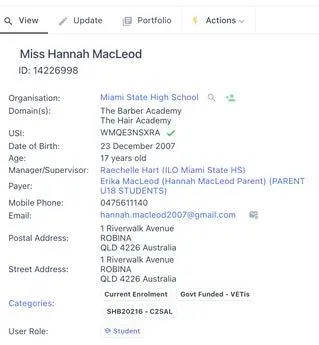
Students under the age of 18 years old, OR are in school OR are an apprentice will be linked to an organisation with the details of school, parent, supervisor.
NOTE: Students over 18 yrs old must have written authority on file for a third party to discuss student course. Speak with administration if unsure.
ALL contact notes must be sent to all parties.
The example below is a school based student - This means she will have a school and parent/guardian linked to her account to send off contact notes.
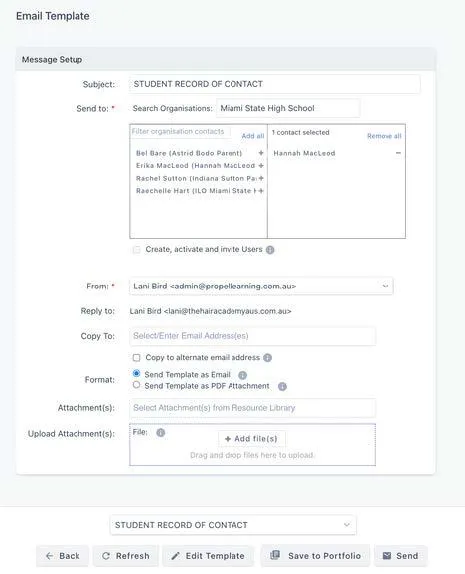
When sending the contact notes, this page will pop up - You will need to select the parent/guardian and school ILO - they will receive a copy of the contact note.
1. Click on the t and it will add them to the right cell.
2. Click SEND
viewing assessments
Video link: https://drive.google.com/file/d/1qd_hZUd90gdFB4yahAztw1w_Loir3qLg/view
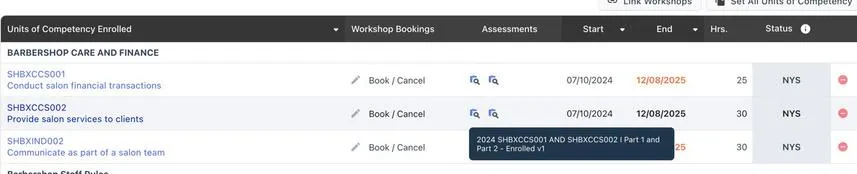
To view assessment assessor guides, you need to go into a student profile. Click on intake
And click on the assessment magnifying glass you want to view.
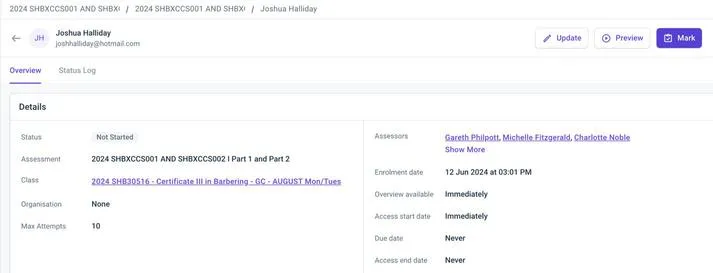
Click on Mark
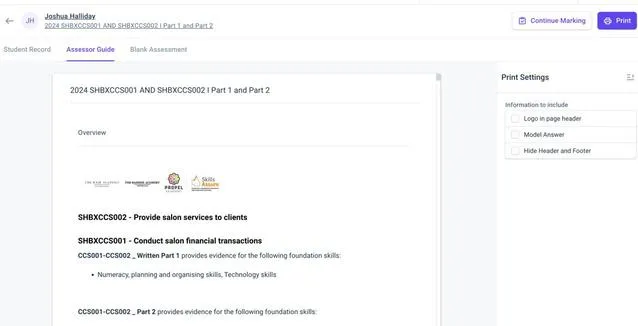
Click on print and then click assessor guide
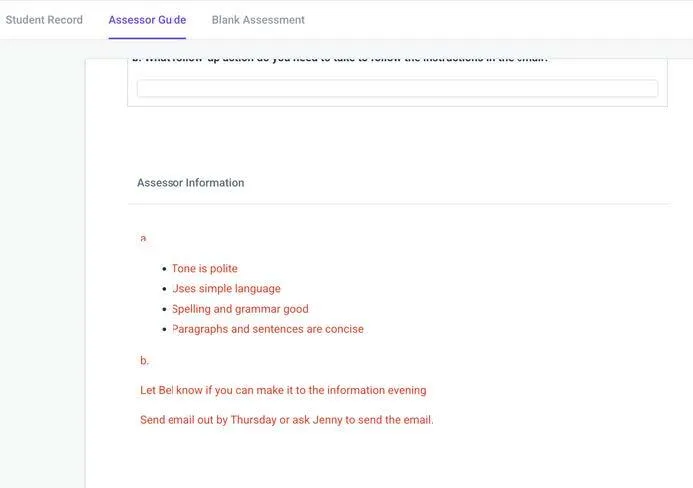
Assessor guide bench marks are under “assessor information” in red writing
tools for assessment
Note: Trainers can use professional judgment - as long as the student has an understanding of what the question has been asked, and the answer is in the right direction of what is being asked, they can be marked “Satisfactory’”.
The theory does not need to reflect word for word the benchmark/factsheet.
This information must be documented.
Verbal Questioning (this can only be done when sitting with the student) - If the student's answer does not reflect that of the benchmark answer however it is clear based on your professional and industry knowledge that the Student has an understanding of what the question
has asked, then you may choose to question the student to confirm their understanding and prompt them to expand their answer.
1. Trainer to sit with the student and discuss the theory/practical
2. Trainer to document word for word the student explaining their answer. If this is for a practical component, document in the student SWOP on the unit. If this if for the theory component, write this in the note section on the student assessment for the question.
Professional Judgement - If the student's answer does not reflect that of the bench mark answer however it is clear based on your professional and industry knowledge, that the Student has an understanding of what the question has asked then you may make a comment on the note section in the theory portal as ‘"Evidence Section". Providing the Students response meets that of the unit’s element/required knowledge or skill. Refer to the training package guide on training.gov.
Go into the student assessment and make note of professional judgement under the note section "EVIDENCE"
Indicate the question number and the Student's answer given. Reasons may include:
Student has demonstrated the required knowledge for this question. Knowledge has been
covered for element 1.3
It does not reflect the benchmark answers as information gathered for the response has been
sourced from an alternative resource.
Competency questions: https://docs.google.com/spreadsheets/d/1ovjmw5UcixDzY3X6F4qAGUMzc5k9J5E7/edit?gid=1032403160#gid=1032403160
assessment submission
Students MUST submit their assessments through the Online Student Portal to ensure they have completed the student declaration as part of the Student Assessment Submission Form (this form is automatically generated and signed by the student on submission).
Trainers will also assist students in understanding this procedure. Should the student have difficulty with these, the student should contact the trainer for assistance.
third party reports
Third party reports are MUST be completed during the very first training session before any training has commenced. The student must be new to the RTO and not had previous training by the training organisation. The evidence we are collecting is based on previous experience.
To inform a judgement about whether a learner has achieved competency, evidence is often collected by the assessor. However, other people (such as workplace supervisors) can also report what they see or hear to the assessor. Evidence collected in this manner is called third-party evidence (it is also sometimes called ‘supplementary evidence’).
A person collecting third-party evidence is not conducting any assessment. It remains the role of your RTO's assessor to make the judgement about whether competency has been achieved.
When developing assessment evidence within your RTO to be collected it usually falls into three broad categories:
1. Direct evidence: evidence the assessor observes first-hand (e.g. workplace
demonstration, work sample, questioning the applicant)
2. Indirect evidence: evidence reported by someone else (e.g. third party report,
workplace performance review)
3. Supplementary evidence: any other evidence that can indicate performance
(e.g. training records, written work, portfolios)
The tips are about the third-party evidence that is collected from workplace supervisors, peers and others to support an assessment decision.
When collecting RTO evidence from employers or other parties we often call them Third Party Reports, or Supervisor Reports. This Third-Party report is where a person contributes evidence of competency, e.g. in the case of workplace supervisors in traineeship or apprenticeship arrangements. Remember the evidence of the third party report is not to be used as a standalone. It needs to be supported with other evidence, such as assessor observations, questions, projects, resume, etc.
Reports
These reports always include an observation of the learners undertaking regular workplace tasks. Make sure you include enough information in this report that provides sufficient details of the tasks being completed. Include the date the observation took place, any behaviour requirements, and allow for feedback from the 3rd party.
Now it is your role, as an RTO, or Assessor, to decide on what the evidence collected from this person will look like.
Considerations
There are several things to consider when preparing guidelines for gathering third-party evidence to ensure the evidence collected meets the rules of evidence:
- a decision needs to be made about the appropriate balance between third-party evidence and evidence drawn from other sources
- the evidence presented demonstrates the learner has the skills, knowledge and attributes as described in the unit of competency and assessment requirements
- does the writer of the report need to have any specific qualifications or vocational competencies such as a TAE
- the required experience of the third-party evidence gatherer
- the third-party is not making a decision about the student’s competence
- the evidence is presented in written/official form, includes the name and contact details of the third-party and can be easily verified
- The best advice is to undertake a validation process before it is used and then following the collection of evidence. We suggest you nominate a period of time and then validate. This process will ensure it is practicable and you are getting the right evidence to support the student….if not, make a change, and record in your continuous improvement process.
Third party process.
Step 1. Discuss with the student and supervisor previous experience and what they have done. Gather evidence such as a reference, resume any photo evidence etc.
Step 2. Go to trainer links and select the third-party report.
Step 3. Fill in the report with all the information of conversation and evidence you have. Keep this detailed and relevant to the unit.
Step 4. All parties are required to sign the SWOP pages of the units for third party. (They need a minimum one observation signed off by trainer and this must be dated at the time of FIRST training session only) If they are doing tasks in the workplace and the supervisor has seen these tasks they can use this as evidence and mark the SWOP - the assessor MUST observe them doing the task at least once as a minimum.
Step 5. Take photos of signed SWOP pages upload into the third party report and send to [email protected]
Step 6. Contact note must be completed at the time of training session and reflect third party.
Step 7 DO NOT BACK DATE OR PRE DATE - Third parties can ONLY be completed at the time of first session with both supervisor and apprentice.
Note: ask the student competency questions to see if they have the knowledge of the unit, write down these questions and student response on the SWOP page reflecting the unit.
Example of a report (add as much detail as possible):
Spoke with the manager and apprentice today about Daniel and that he had previous hair and barber experience. He either did a Saturday job or worked in a salon previously and not been given credit for what he has been doing thus far. This could be in the salon he is currently working in. To clarify you may ask Daniel a couple of question to ensure that he understands the information from the unit you want to give him credit for. (go to training.gov for the outline of the unit) You can record that you have asked Daniel questions, but ultimately the supervisor MUST agree that they are competent in this unit and they have practically seen this student complete the tasks required on numerous occasions. You will see them and mark then off in their SWOP book. (They need a minimum one observation signed off by trainer and this must be dated at the time of FIRST training session only)
Example of Third Party Report:
[Student Name] has been working at Jimmy Rod's as a junior barber since 10/5/2025. Their role involves interacting with customers, maintaining the store, handling point-of-sale transactions, and implementing sustainability practices such as waste reduction and energy conservation. The student served a retail customer, providing product advice and processing a sale. The [student name] engaged the customer in conversation to determine their needs, recommended a suitable product, handled objections professionally, and finalised the sale through the POS system.Supervisor agrees that [Student Name] is capable of completing the above tasks competently and after observing [Student Name] in the workplace doing these tasks, he is more then capable to be signed off on those units.
Units: BSBSUS201 and SIRXSLS001
Below is an example of what the SWOP looks like when signed off via third party.
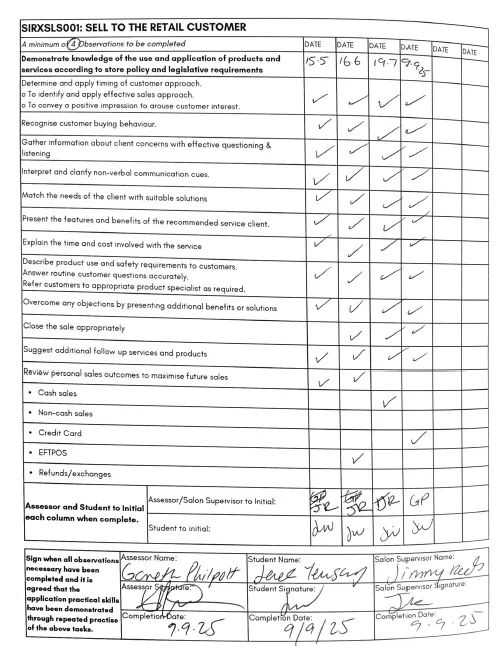
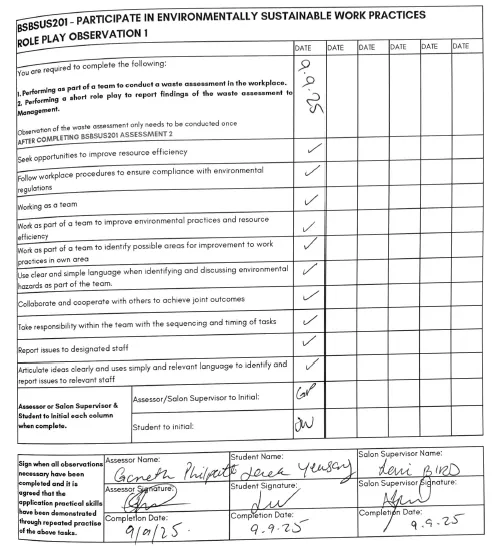
Completing a third-party report is deeming the unit competent in both practical and theory. Generally, we only do third party reports for the smaller units. Please contact the compliance team regarding larger units such as Colour or Cutting units as this would be regarded as RPL and is a different process.
Any third party reports that come through compliance can be rejected if they do not meet the requirements.
Remember, when signing off a unit via third party – you MUST have the approval and signature of the shop/salon supervisor. The SWOP book must signed as well for the units you are marking off.
student assessment practical SWOP
student uploading SWOP into portal
Watch video: https://drive.google.com/file/d/1A6uyU9AiJVkmGz9pjDy3HlCO25uCvfjS/view?usp=drive_link
When the trainer has signed off all the relevant practical observations for a unit, the student is required to upload all the SWOP pages into their “Practical” component in their learner plan.
NOTE: it is recommend student do this on their phone.
SWOP pages are required to be uploaded on the day of sign off. This is to ensure the dates in axcelerate are correct
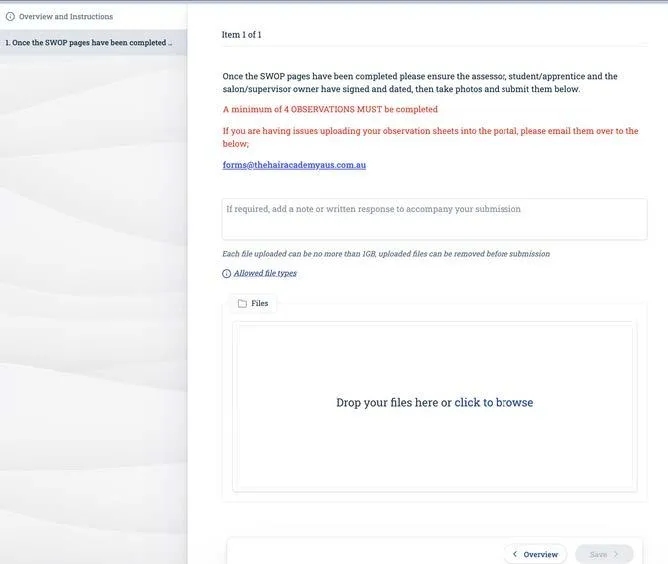
Step 1. Student to take a photo of the completed SWOP pages.
Step 2. Student to login into their learner portal. Click on Learning Plan and select the unit practical they want to upload their SWOP pages into.

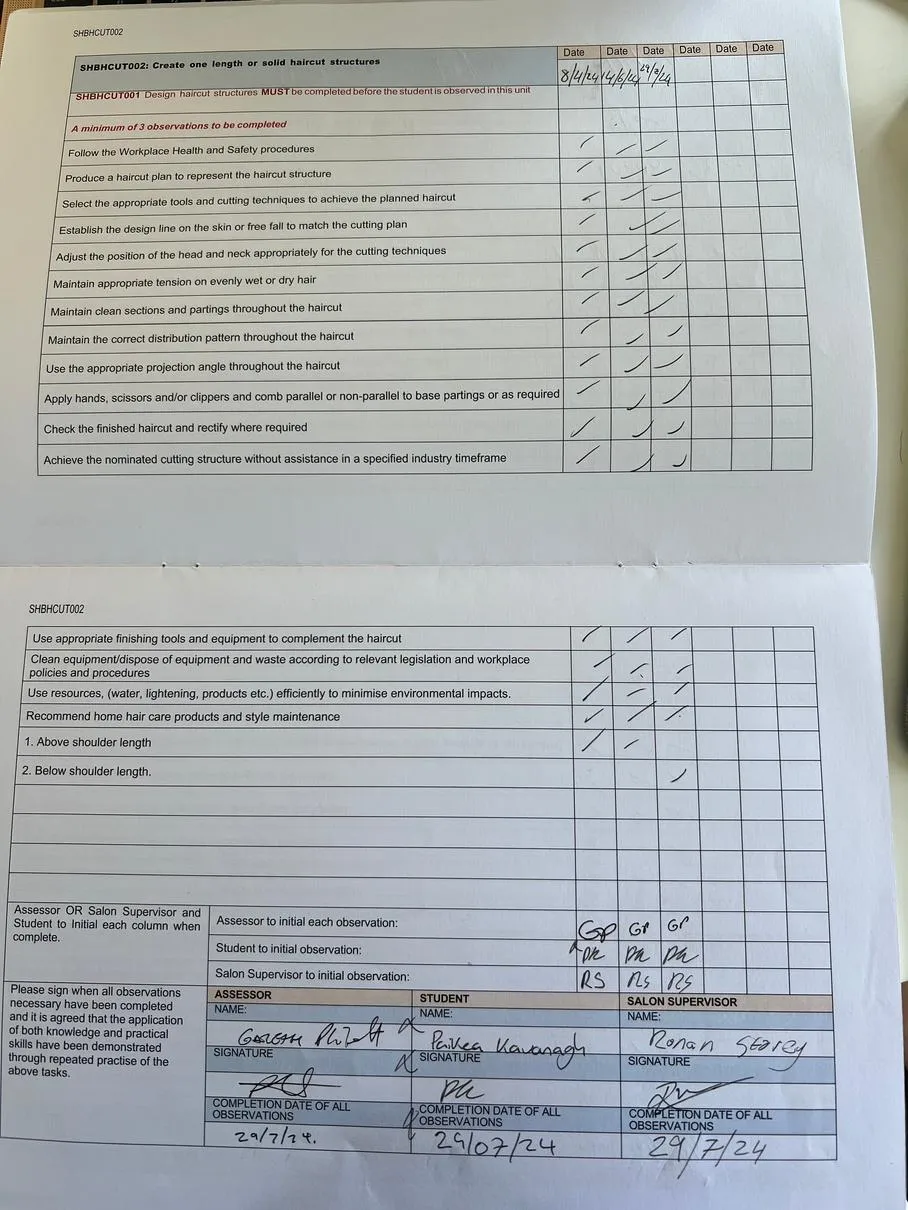
When the trainer/assessor has observed a student completing an assessment, this must be recorded in the swop book. Under the unit completed, you will write the date of the assessment at the top. Each unit will have different requirements for a minimum of observation required to be completed, you can find this written in red at the top. For example unit SHBHCUT002 has 3 observations to complete.
There are different performance criteria ranges for every unit that are completed during the assessment. Some of the criteria should be observed and marked off on every assessment and the performance evidence (techniques used/ hair length/ hairstyle) will only be marked off what was completed during the assessment. For example unit SHBHCUT002 has requirements of above shoulder length and below
shoulder length, you should only mark one of each per assessment but they both must be covered before signing off the whole unit.
Some units are a pre- requisite and require other units to be completed first. For example unit SHBHCUT002/SHBHCUT003/SHBHCUT004/SHBHCUT005 must be completed before SHBHCUT007.
When an observation has been completed for a unit the assessor & student must initial below as required. After all observations have been completed the assessor & student must sign and date the swop book. This date must be the same date as the last observation.
You can cluster units in the swop book if this is covered in the assessment. This means if a student has covered layering, freehand clipper, men’s grooming, tracks & taking payment in the assessment then you can cluster those units together as 1 assessment.
For Example SHBHCUT004, SHBHCUT009, SHBHCUT013, SHBHCUT010, SHBXCCS001 & SHBXCCS002.
When a unit has been signed & completed, please update the overview of practical observations with date of completion, Trainer name & signature.
Video link: https://drive.google.com/file/d/1d8b4qzF3uCheM7LCCAwaWZ3EORUw5xky/view
SWOP video: https://drive.google.com/file/d/1RFxIsL7j8tcKxWgubL3mjDkr2_rUhjtZ/view
1. Practical Assessments - Most units will have a practical assessment that needs to be completed. With each of these tasks the trainer needs to complete an observation form that indicates if the student has completed the task in the appropriate way. These practical tasks are based on the unit of competency, particularly the Performance Evidence.
a. The assessment must be completed the required number of times e.g. 3 times to a competent standard. This competence can be achieved with the assistance of some questioning from the trainer and the student should be allowed 3 attempts to complete the assessment appropriately. Once the final observation in the SWOP book is completed, the observation form and any associated paperwork needs to be uploaded. (The SWOP will document the minimum number of practical assessments for a specific unit) Completing an assessment means the student has completed with service without any assistance.
b. Practical assessments can take a variety of forms including;
i. Work based tasks
ii. Observations
iii. Group tasks
iv. Videos/photos and presentations
v. As a trainer and assess, you can make a judgement of the student capabilities of the unit and how their practical standards are to not disadvantage.
If a student completes a practical assessment before meeting the minimum required number, and the trainer/assessor determines the student is competent, a professional judgement may be applied. In these cases, the trainer/assessor must clearly document the rationale in the student’s SWOP book, explaining why additional assessments are not required.
Example:
SHBHCLS003 – Student A has completed 3 assessments where 6 are required. The Trainer/Assessor (or salon supervisor for apprentices) confirms the student is competent and that completing the remaining assessments would not provide additional benefit (e.g. limited client availability). This decision must be documented in the SWOP book.
In some instances, students may be unable to complete all required assessments due to limited client demand for specific services (e.g. a flat top haircut). In such cases, the trainer may apply professional judgement by having the student complete the service on a head block and assess competency through targeted questioning to confirm knowledge and understanding.
It is not always possible to see every single practical assessment for apprentices. Trainer and Assessor must see the last practical. IF the SWOP book has been completed during your next training visit BEFORE co-signing off, you must speak with the supervisor in the salon/shop to confirm that they are happy to sign off that practical unit and the apprentice MUST provide evidence such as before and after photos.
Supervisors are NOT allowed to make assessment judgments, this is the RTO trainer and assessor role.
What is ASQA's stance on employers / supervisors completing observation of practical demonstration as a component of the assessment process for a unit of competency?
In certain circumstances it is reasonable to use another party for evidence-gathering where workplace evidence is required but it is not possible for the assessor to directly observe the student at work. For example, in cases where:
• the presence of an assessor may compromise workplace safety, or
• where work activities involve issues of patient confidentiality and privacy.
In such circumstances, the other party is not making any assessment judgements, nor are they involved in a ‘co-assessment’ arrangement. They are simply assisting in collecting evidence because they are in a position to directly observe the student in a real workplace setting.
The assessment judgement about whether competency has been achieved based on all of the collected evidence can only be made by a suitably qualified assessor who meets the Credential Policy requirements.
What methods should providers use to ensure students are directly observed by the assessor—on at least one occasion— while maintaining assessment integrity across different learning environments (including face-to-face, online, rural, and remote settings)? What happens if there are additional privacy policies of many schools and early childhood centres?
Providers need to determine the best method for assessment in accordance with the assessment requirements outlined in each training product and any applicable laws or considerations such as privacy requirements and the National Principles for Child Safe Organisations.
Remember, we are using the SWOP book to sign off the practical component of the qualification, this means they are completing practical to shop/salon/trainer standards and unassisted.
Apprentices MUST have the signature of the shop/salon supervisor to sign off any practical modules.
SWOP books must not be completed by students. Only trainers and salon supervisors are authorised to complete the practical SWOP book.
A SWOP entry is completed only when a student performs the service unassisted to shop standards. The trainer is responsible for completing the SWOP entry, with both the trainer and student initialling the book.
The final assessment must be signed off by both the trainer and the student. Once completed, the student is required to upload the signed assessment to their learner portal under Practical Observation.
Please note that SWOPs must not be backdated or pre-dated. All SWOPs are to be kept up to date at all times and uploaded on the same day the final assessment is completed.
Step 3. Upload into the portal and click SUBMIT
NOTE: If the student is having issues - they can send the SWOP pages to - [email protected] to be manually uploaded by the assessing team.
Step 4. Student will need to sign the declaration.
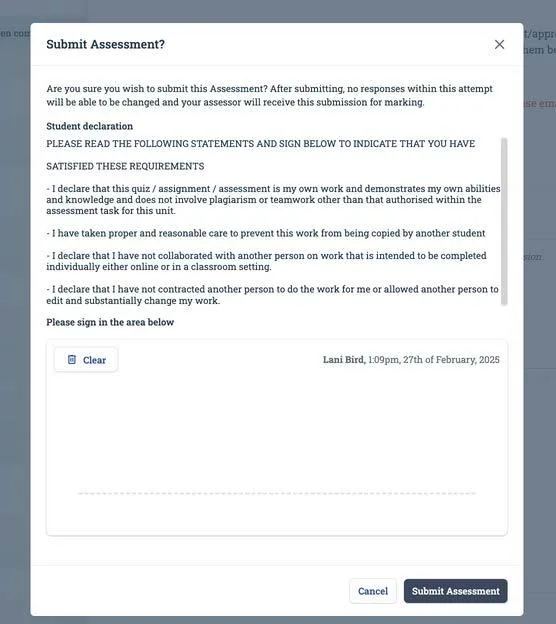
TRAINER MAUALLY UPLOADING SWOP PAGES
If the student is not available to upload the SWOP pages to their learner portal, trainer is able to manually upload the SWOP pages on their behalf.
Step 1. In Axcelerate go to student profile
Step 2. Click on Intake
Step 3. Search for the unit and the practical observation you want to upload SWOP pages to.
Step 4. Click on the Practical Observation assessment
Step 5. Click “Mark”
Step 6. Click “Manual Submission” The below prompt will pop up - click okay
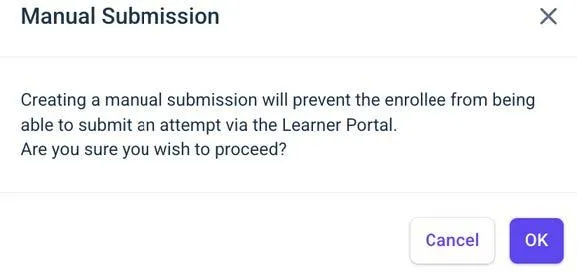
Step 7. Click “Evidence”
Step 8. Upload SWOP pages to the evidence section and SAVE
You will need to finalise the signing off on the unit - please ensure that dates match in aXcelerate. If you are not sure, please contact your manager.
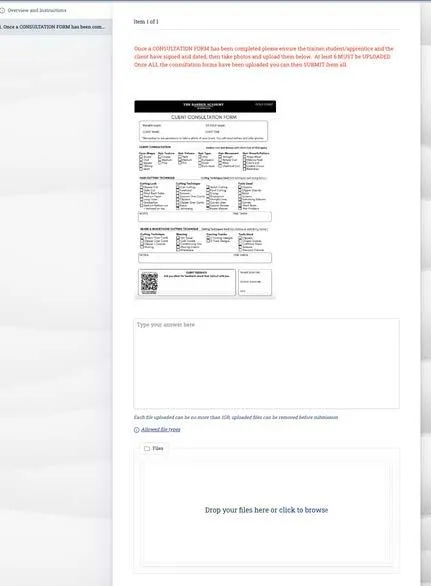
CONSULTATION FORMS
Consultation forms form part of the training and assessing/evidence and portfolio.
In each service unit the student is required to complete the minimum consultation form/photo and upload into their student portal under consultation for that unit. Consultation to match SWOP book and ranges.
If you hover over each magnifying glass it will identify the consultation for the unit.
CONSULTATION FORMS - Uploading into Learner Portal
Students can use the digital version or hard copy version.
Online version process.
Option 1: Online Consultation Form
Complete the online form using email details.
Once submitted, check email for the completed form copy.
Save the form to device.
Upload the saved form to Student Portal → Consultation section.
PDF Fillable version process.
Option 2: PDF Fillable Consultation Form
Download the PDF fillable consultation form.
Fill in all required details.
Save the completed form.
Upload the saved form to Student Portal → Consultation section.
If you need to send the student the online consultation form:
Step 1. Go to aXcelerate
Step 2. Click on template
Step 3. Search "Consultation form - SHB30516 and SHB30416"
Step 4. Save and submit
Step 5. Send
Student will now receive a copy - it is recommended they save this link.
NOTE: Units cannot be marked COMPETENT if anything is outstanding next to the unit. ALL magnifying glasses must be marked with a green tick for the unit to change from CA to C.
Consultation forms are required to be uploaded into each seperate unit.
If the student is having issues with uploading their consultation, they can email it over to [email protected]
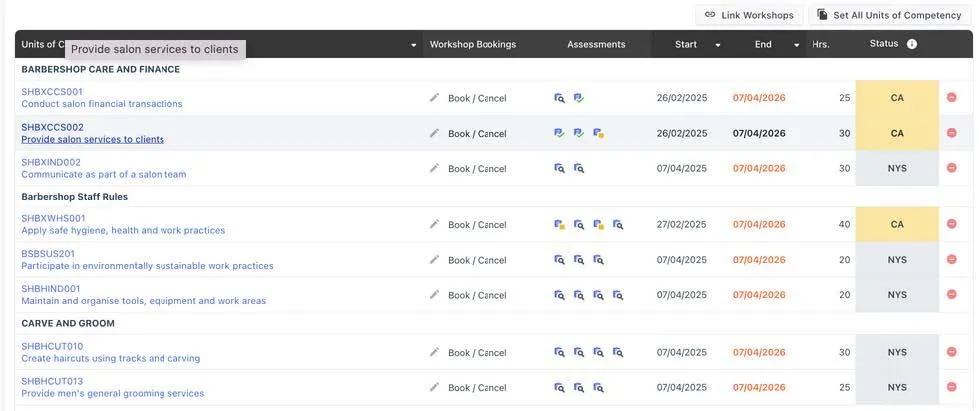

Consultation forms must be uploaded separately into the correct unit. Generally, when a unit is finalised this is when the student should be submitting consultations and SWOP pages.
STUDENT PROGRESSion CHECK-in
On the schedule/session plans we have 3 progression check in with ALL students.
Trainer is to organise a chat at the end of week 4, week 16 and week 28 to discuss individually with each student how they are getting on with the course, discuss their feedback and your feed back.
1. How do you feel the training is going?
2. What are you enjoying about the course?
3. What do you feel you need to work on?
Provide each student with relevant feedback to ensure it will be successful course for them. Identify concerns or positive feedback.
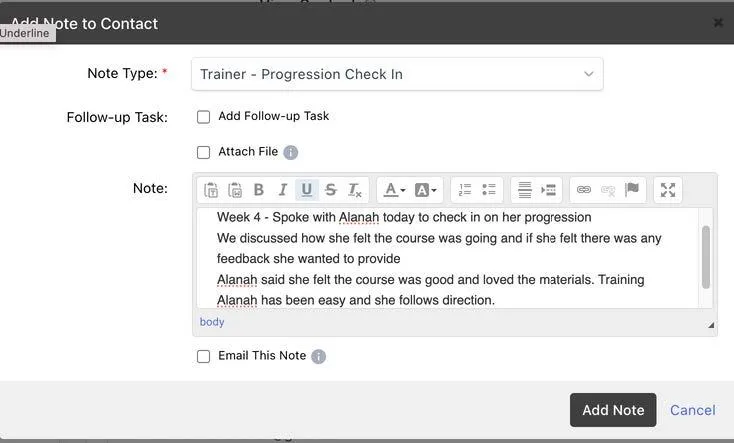
This conversation is required to be documented in the student profile.
Go to student profile.
Click Add Note
Note Type: Trainer - Progression Check in
If there are concerns, please send to management and add to weekly checklist.
At The Barber Academy, we value student feedback. We will also request students to complete an anonymous survey for feedback.
flow chart of progression
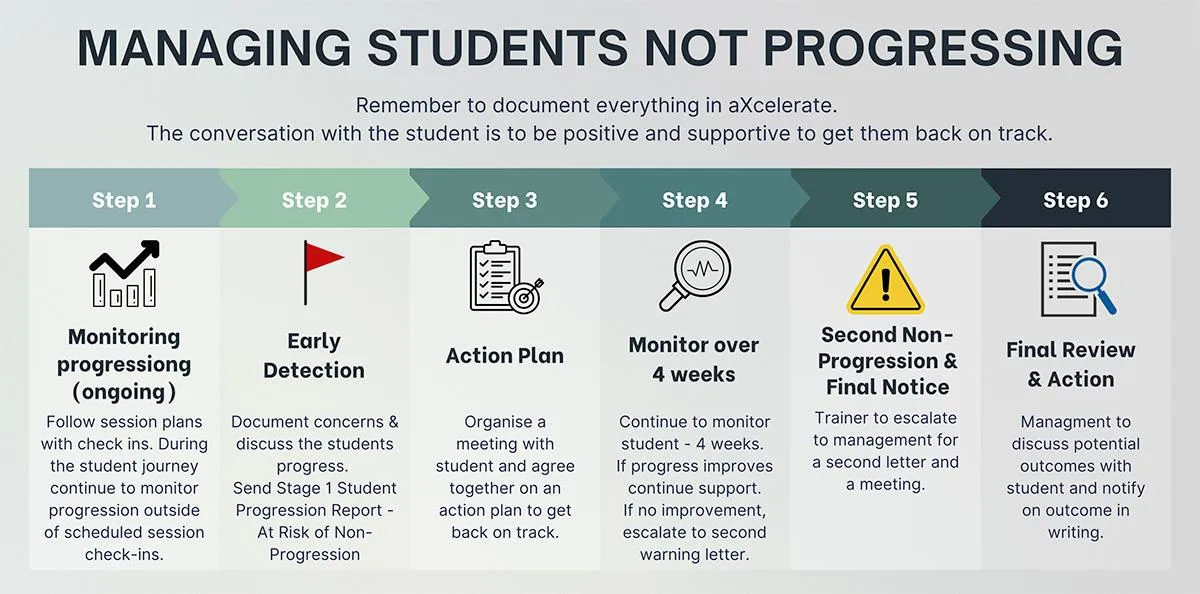
Process: Managing Students Not Progressing on Course
Note: Progression is attendance/attitude towards course engagement/theory and practical components, or not up to date financially on their course. If you are unsure if a student is required to be sent a non-progression, flag on your trainer checklist to discuss further with management.
The trainer is responsible for student progression conversations and providing the student with information on improvements etc. The conversation needs to be positive to get them back on track!
1. Monitoring Progress (Ongoing)
Responsibility: Trainers/Assessors
· Trainers regularly track student progress via aXcelerate and assessment submission records.
· Identify students who: (at risk criteria)
· Miss key assessment deadlines
· Fail multiple assessment attempts
· Are absent from scheduled sessions
· Show signs of disengagement
Tool: Progress Monitoring Dashboard or aXcelerate reports (e.g., weekly/monthly check-ins) Follow session plans.
2. Early Identification & Flagging
Responsibility: Trainer or Student Support Officer
· Students who meet “at-risk” criteria are flagged.
· Document the concern in the aXcelerate.
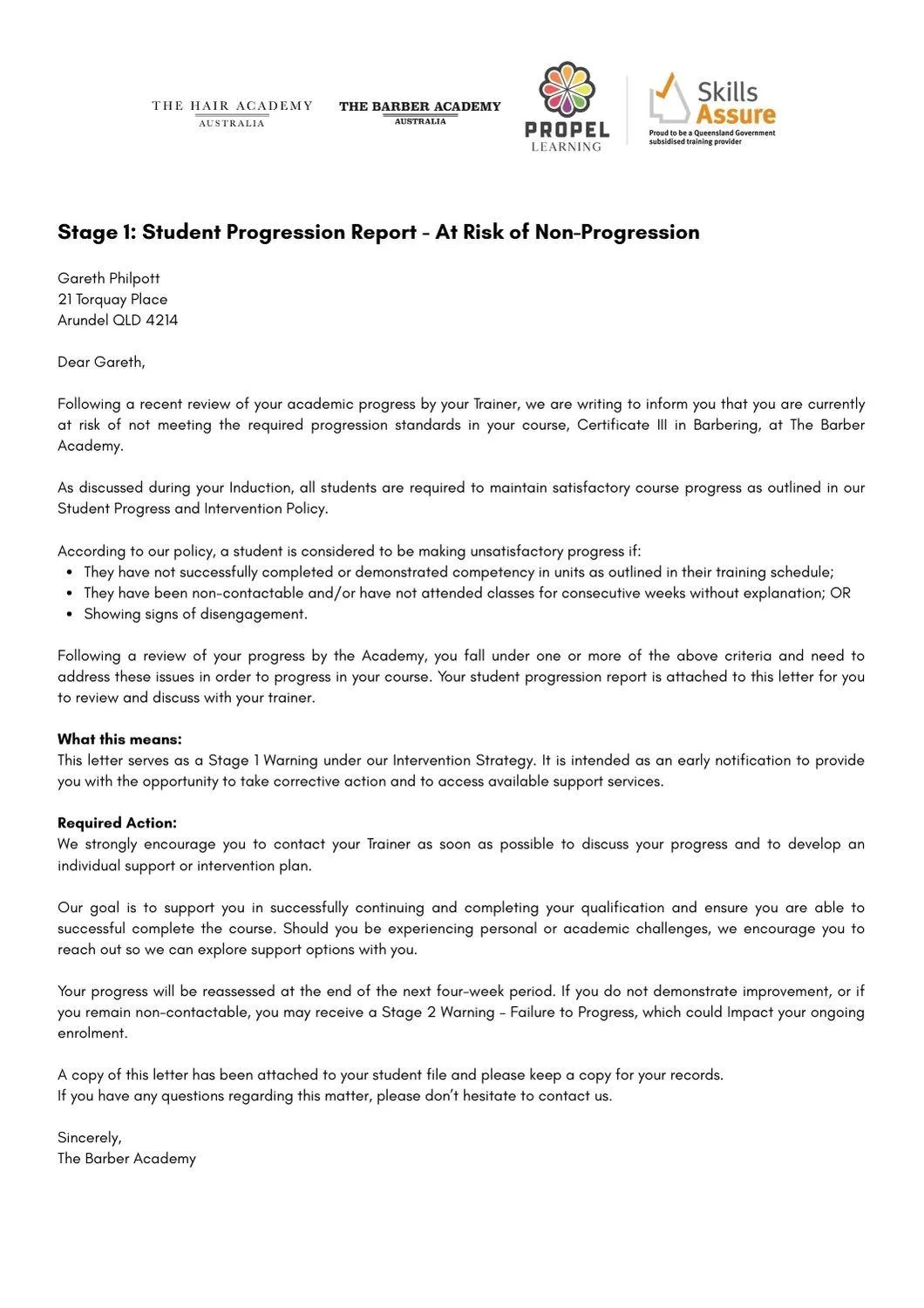
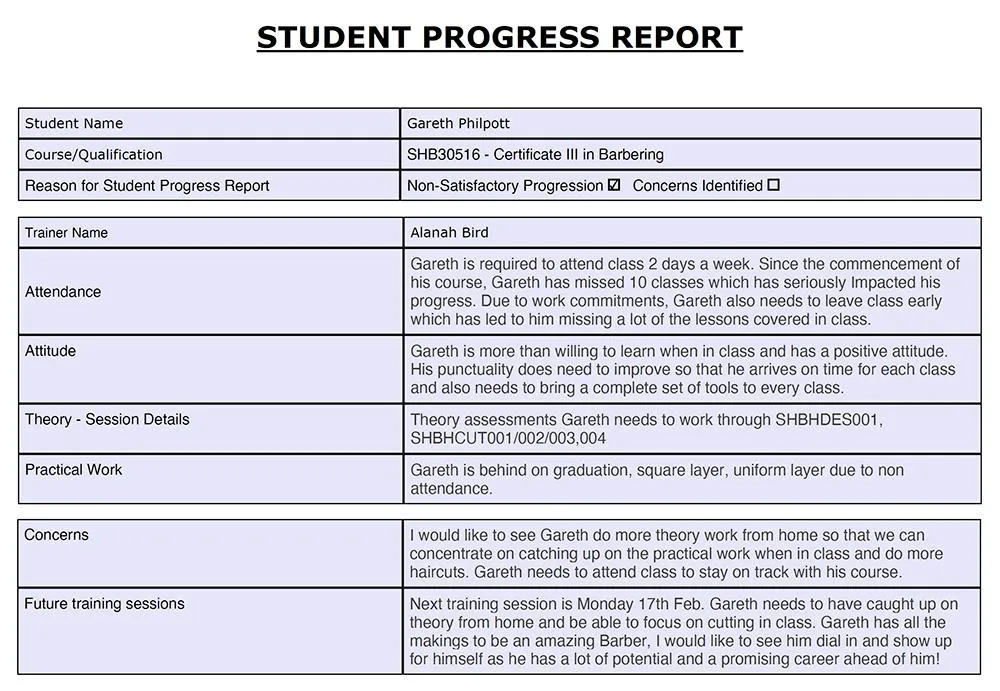
Send a "Stage 1 Student Progression report – At Risk of Non-Progression".
Report includes:
· Summary of missed work
· Statement of concern
· Invitation to discuss support options
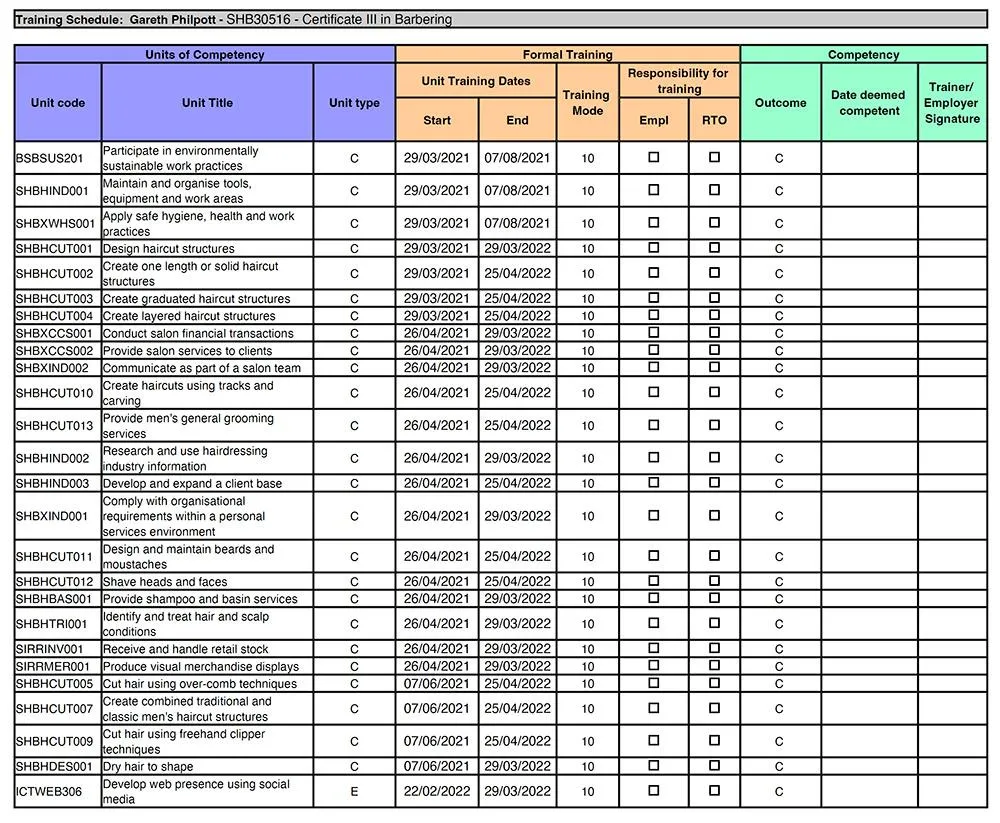
Trainer to organise a meeting with the student to discuss concerns. This can be done face-face, online or text. This needs to be completed within 48 hours of sending report.
During the meeting, conduct Action Plan - Progression to agree on plan of action.
· Revised deadlines
· Additional support (LLN assistance, tutoring, counselling)
· Attendance or engagement goals
Send copy to student and student services regarding action plan agreement. (to document) Remember: keep the conversation positive to get them back on track! We are here to support them to finish their course.
3. Monitoring of Student Progression Plan
Responsibility: Trainer & Student Support Officer
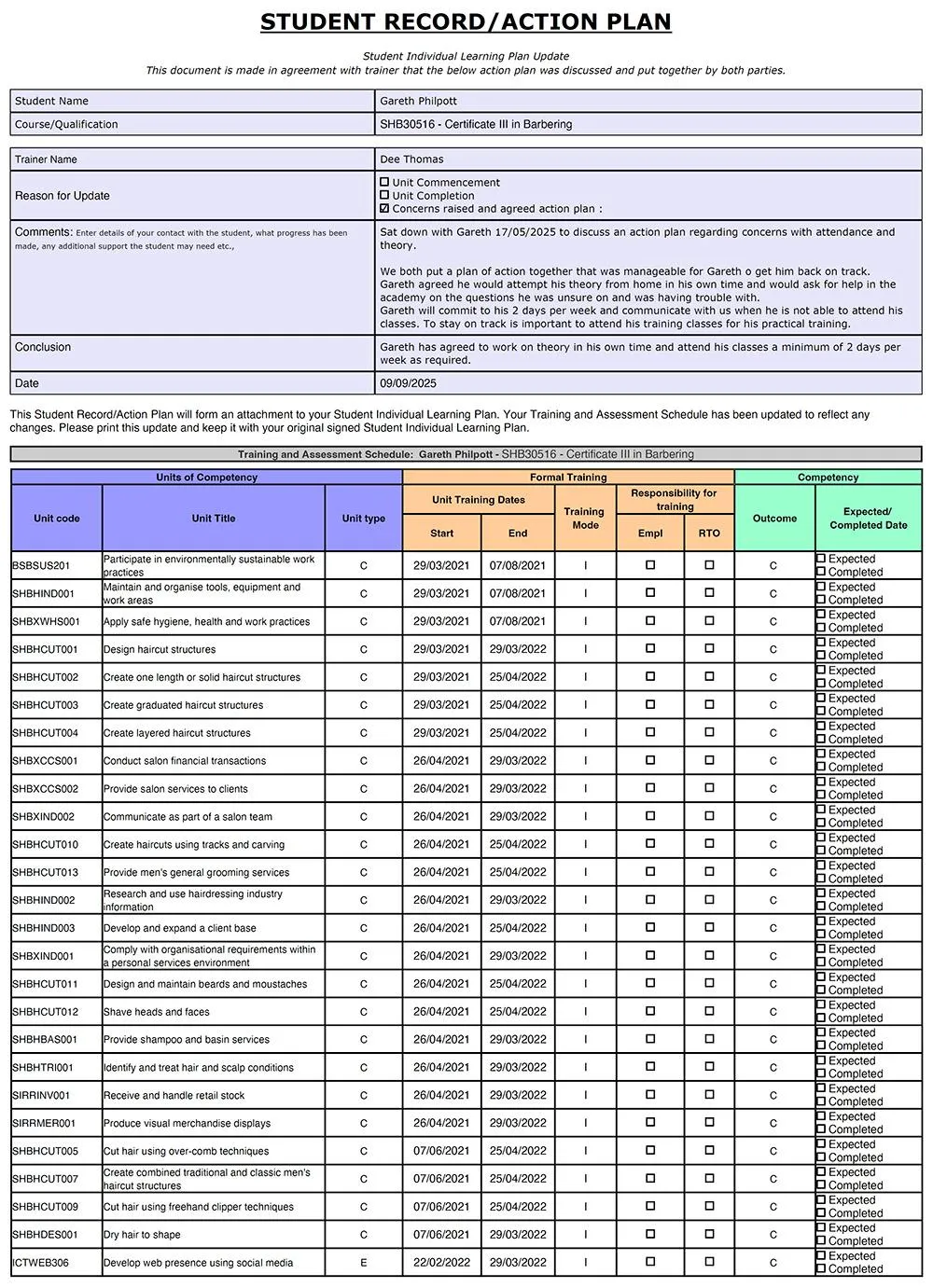
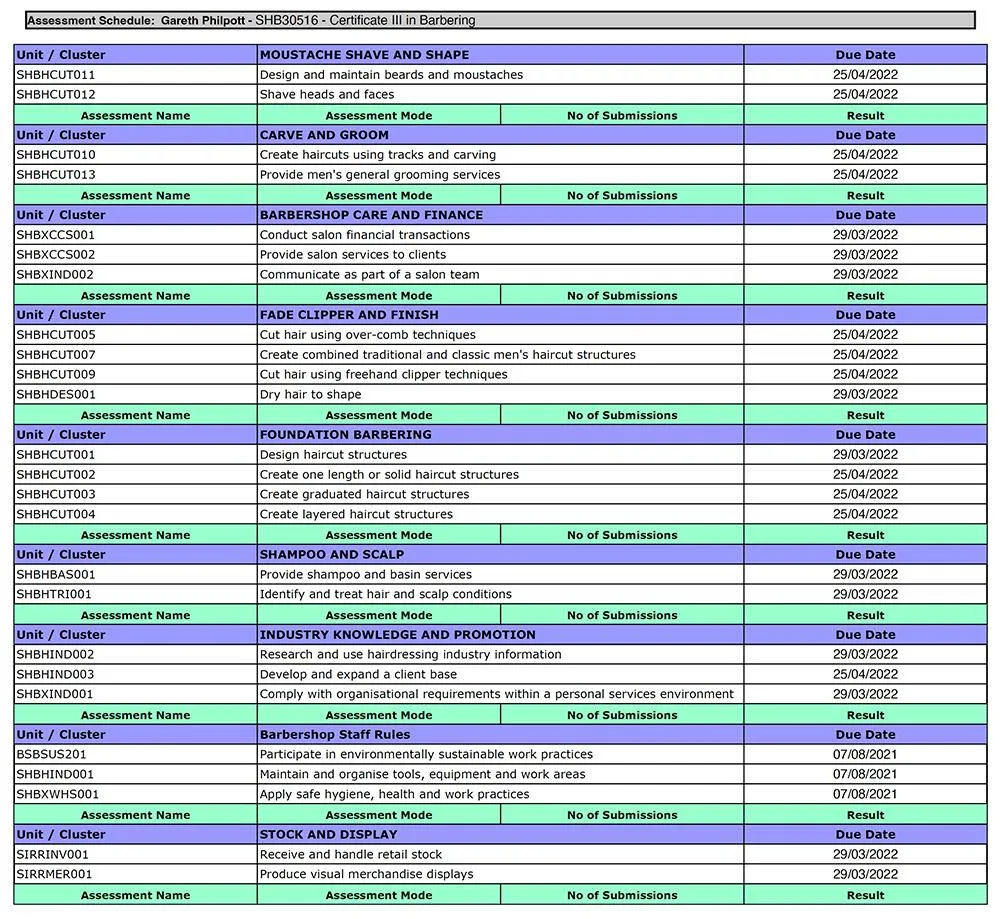
· Monitor agreed progress checkpoints.
· Maintain weekly notes or check-ins.
If progress improves: continue support until student is back on track.
If no improvement: escalate to second warning and final.
In aXcelerate, set yourself a reminder to check in.
4. Second Non-progression Warning & Final Notice
Responsibility: Course Coordinator/ The Academy
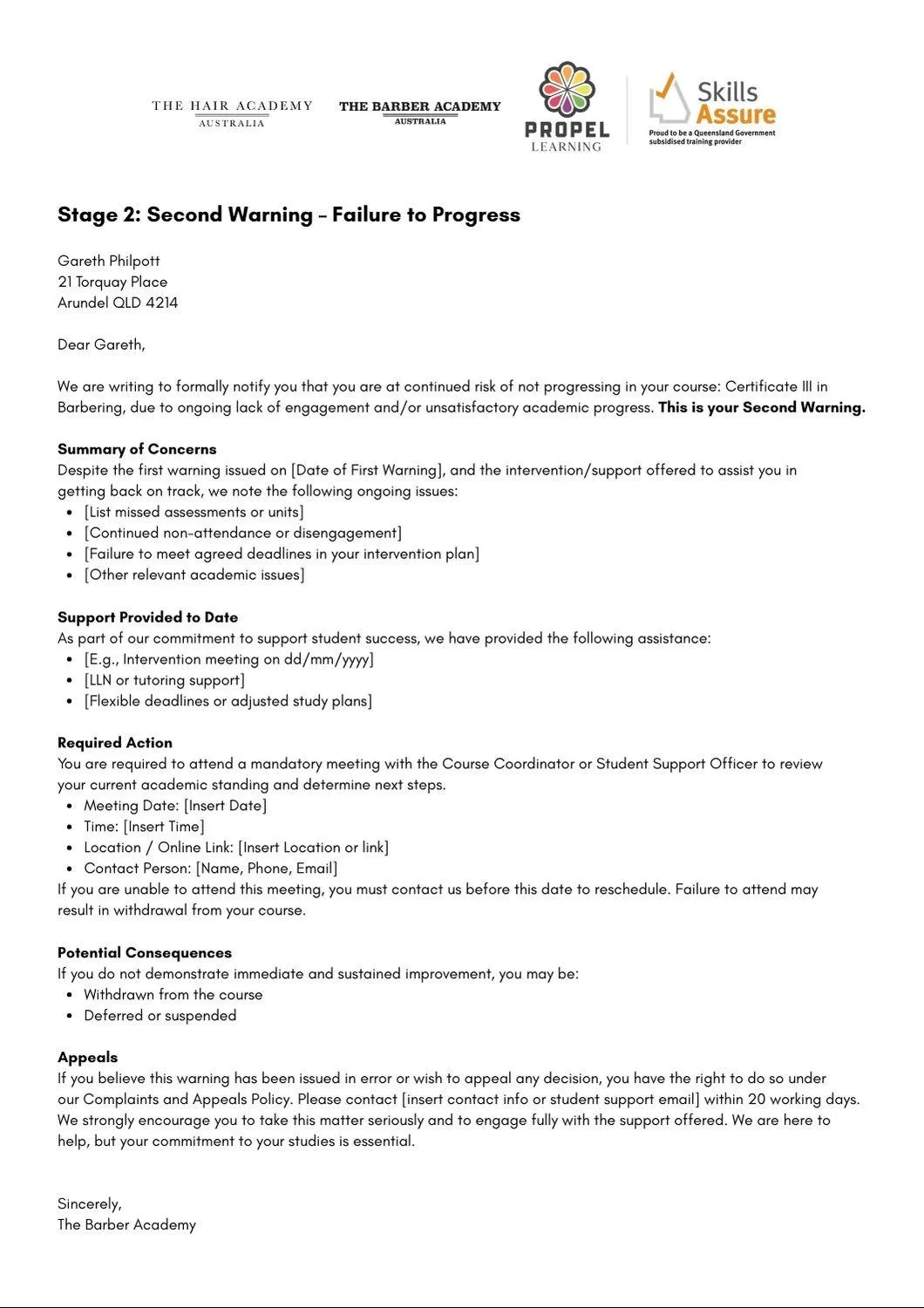
Issue a "Second Warning – Failure to Progress" notice.
Notify student that continued non-progression may result in: Course withdrawal Deferral or extensions
Allow 5 working days to respond to discuss meeting.
5. Final Review & Action
Responsibility: RTO Manager or Academic Committee
If the student: Does not respond Fails to improve after intervention
POTENTIAL OUTCOMES:
· Withdraw student
· Defer enrolment
Notify student in writing of the decision and appeal process.
Ensure decisions are aligned with:
- Standard 1.7 (Support for students)
- Standard 5 (Informing and protecting students)
6. Appeals and Complaints (if applicable)
Responsibility: Compliance Manager
· Inform student of right to appeal within 20 working days.
· Follow RTO's documented complaints and appeals procedure.
Additional Notes:
Ensure all communications and interventions are recorded in the aXcelerate.
SETTING A REMiNDER TASK IN AXCELERATE
Trainers should set themselves reminder tasks in aXcelerate for training plan updates, ERA updates, student progress check in, student contact check in etc.
Go to student profile.
Add note: Trainer - Student Progression Report
Add note information. 4 week progression check in regarding non-satisfactory progression.
Click on Follow up Task - adjust the dates and click set reminder (you can adjust the time)
Category: Course Management
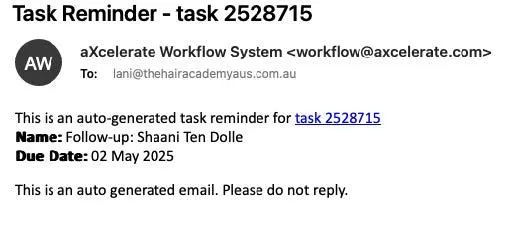
On the follow up date, Axcelerate will send you a reminder email to action the task.
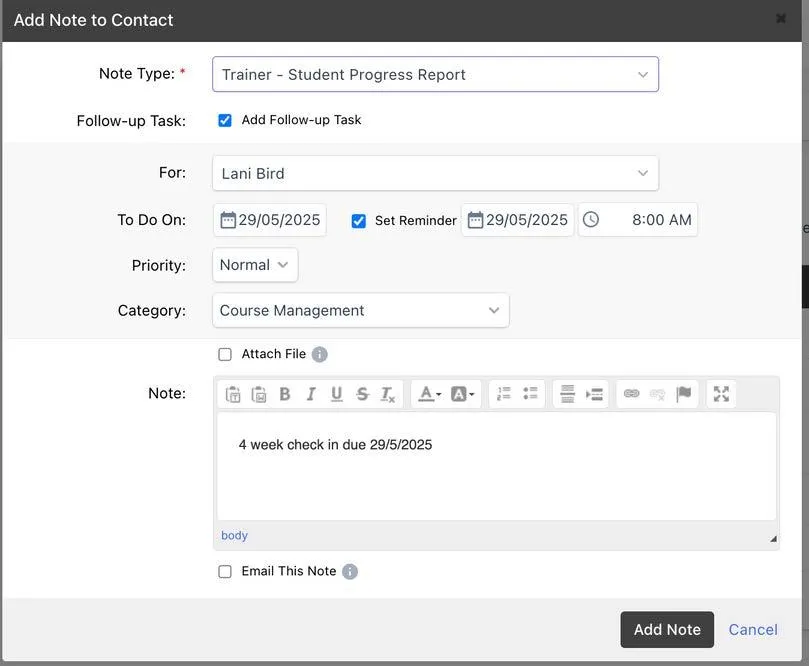
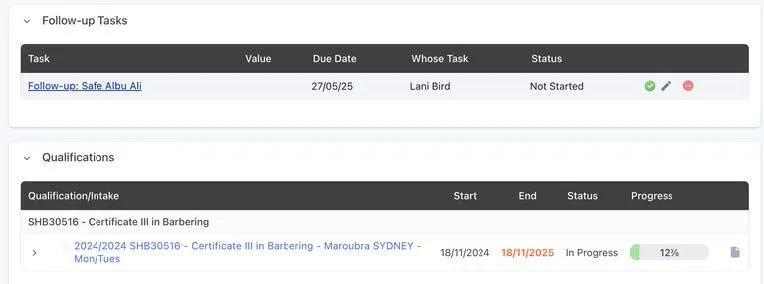
You can use this task follow up for any task or any reminder you need in relation to a student or general job task you need to do.
- You can go into your own to set yourself a task.
- The Task will show up on the student profile.
- Once the Task is completed, you can tick it off.
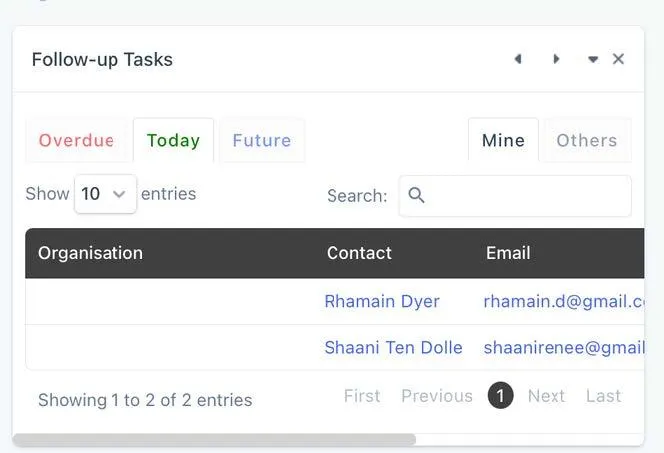
when the TASK followup is due
When the task follow up is schedule is due you will receive an email. See below.
You can view follow-up tasks on your dashboard. See below.
downloading notes in axcelerate
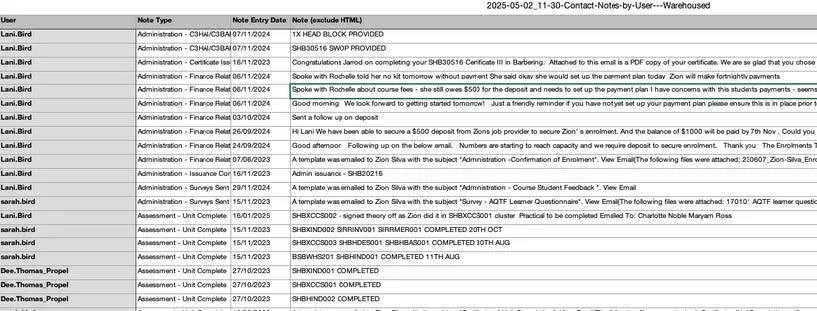
To be able to have an idea on a student progression of attendance, you can download the file notes from the student profile.
Step 1. Go to student profile.
Step 2. Under “Contact Notes” Click Download
Step 3. The report of ALL contact notes on the student profile will download into a spreadsheet.
Step 4. Filter the report to review the information you need.
Step 5. You can have this for your own information/records OR send it off to the student regarding the number of non-attendance days etc.

completion process
Academy Students
When a student is nearing course completion, there are a few things that administration must check prior to
units being signed off. This includes student payments. NO units/finalisation of a qualification will be processed until the student
account is finalised.
Step 1. Notify on your trainer checklist that a student is progressing and is expected to finish prior to end date.
Step 2. This will notify the administration team to follow up directly with the student on any outstanding funds on the account
NOTE: Some students prefer to leave the account on a payment plan - this means, they CANNOT be signed off until the account is finalised.
- Trainer will be notified by administration when finances have been finalised.
- Once administration have finalised finances, the trainer can commence to finalising any theory and practical assessments.
- Trainer can discuss with the student, from a trainer point all competences have been met and this has now
been passed onto the compliance team who will be in touch.
- Issuance process can take up to 30 days.
- Compliance must complete issuance before it gets sent to administration to finalise and issue qualification.
The trainer MUST have the SWOP book to give to the administration for issuance and to archive. Remember to check with the administration team regarding student completion to ensure finances are up to date.
course extension
Students that require an extension must speak with their trainer at least 2-3 months prior to their expected end date and complete an extension form to extend the duration of a course in order to receive additional time to study and complete assessments. Students will need to contact the administration team for this form.
Extension form online - https://studentsupport.propellearning.com.au/extension-request
Course Extensions
Course extensions should be requested no later than 2-3 months prior to the end of the course. Ideally, we are notified of any concerns during the students time on the course. The duration for a course extension is determined on a case-by-case basis. The following may be
taken into consideration; the student’s situation/reasons for an extension, attendance during their course and when the next available intake or training for the course will occur.
Course extensions incur additional fees/charges to the course cost due to additional training and time being required for the course, minimum fee is $200 per week. (this is determined by the management team and will be discussed directly with the student).
Where an extension is not appropriate or has been denied, students may in some cases have the option to defer (put on hold) their course or to withdraw from their course until such time where the student is able to meet attendance and or course progression requirements. This is especially ideal for students who have compassionate or compelling circumstances.
Refer to the Deferral and Student Withdrawal.
Students should participate if appropriate and attend their course as normal until a decision has been made on their application.
If PROPEL EDUCATION AND TRAINING PTY LTD was to deny an extension request, students have a right to appeal the decision. Whilst the appeal is in process the student is required to continue to maintain scheduled course progression. Refer to the Complaints and Appeals Information Sheet.
Specific conditions and procedures are applicable to various student/funding types, these conditions and their corresponding are located below as follows: Student handbook, Apprenticeship and Traineeship Conditions
Applying for Extensions Before the expected nominal completion date.
Nominal durations apply at both the course and unit of study level. Students unable to complete any assessment within the nominal duration can request via email or phone or in person any extension that falls before the academic penalty date. Extensions are only awarded upon request, and you can request as many extensions (within the nominal time frame) as you need.
When applying for an extension we recommend choosing a specific and measurable date that is not too distant in the future. Our friendly staff will assist you with choosing this date and in setting goals that will help you reach your completion goals within the extension period.
When applying for an extension after the academic penalty date, students should provide as much evidence as possible to strengthen their application.
Extensions will be awarded based on the assessment of the following:
- Reasons why the student was unable to complete prior to the academic penalty date
- Evidence (or lack of) provided with the extension request
- Amount of study undertaken during the academic penalty date Current progress through the course
- Length of requested extension
Upon receipt of an extension request, PROPEL EDUCATION AND TRAINING PTY LTD will make an assessment and respond within 28 days of the submission of the application. Where PROPEL EDUCATION AND TRAINING PTY LTD awards an extension, PROPEL EDUCATION AND TRAINING PTY LTD also reserves the right to impose additional conditions. The conditions will be mandatory to maintain enrolment and will be related to course activity and assessment completion/submission.
Remember, trainer are recommending/advising the student that they are not ready to be signed off by their nominal completion date. If an extension has been recommended, then an action plan is in place with what the student can complete up until their end date, this is to help the team identify an extension period. We do not want to recommend extensions and then sign a student off during their nominal date.
Issuing a qualification means they are competent in all areas of the qualification to a high standard.
plagiarism
It is Propel’s responsibility to ensure that students are informed that breaching the plagiarism or cheating codes are unacceptable. The trainer shall monitor and review the plagiarism process as part of our continuous improvement strategy.
Plagiarism shall be explained to new Staff and Students at Induction and should be reminded to all students upon commencement of a new unit. The Trainer is to remind Students that plagiarism is not acceptable and remind them that upon submitting each of their Assessments, they are confirming they are submitting their own work.
Refer Students to the Student Handbook about misbehaviour and ensure they are aware that plagiarism can lead to suspension and finally to cancellation of enrolment. It is important to stay consistent and treat all Students in the same way when dealing with plagiarism.
If Trainers or Assessors suspect that plagiarism has occurred, it shall be addressed by ensuring that all information is recorded.
a. From student’s Axe profile:
i. Select: Add Note
ii. Note Type: Student Compliance
iii. Note: Detailed information regarding suspicion of plagiarism
iv. Attach File: Supporting documentation.
v. Select: Email This Note
vi. Email Note To: The Compliance Team and Course Coordinator.
vii. Select: Add Note & Send Email.
The Operations Manager and Team Leader must be informed of the allegations in sufficient detail to be able to respond appropriately. The student will be contacted and a meeting will be conducted where they can invite a support person.
The student will be advised of their rights under the policy and treated justly. For definitions, penalties, and more information on plagiarism, please see the Student Handbook.
assessment results appeal
Initial Appeal
If a student is dissatisfied with a decision made in relation to an assessment item, they are required to notify their assessor in the first instance.
1. Receive notification from student that they wish to appeal an assessment result.
2. Review and re-assess the students’ work adding notes to the original Student Assessment Feedback providing a written report regarding the re-assessment and outlining the reasons why the assessment was or was not granted.
a. If reassessment result is Satisfactory then save the updated checklist
i. File Name: yymmdd Student Name unit code – SAT - REASSESSED
ii. Follow the normal procedure to record result.
b. If reassessment result is unchanged (NYS or CAN):
i. Go to student Axe profile
1. Select: Qualification/Intake
2. Select: Template
3. Template: Initial Appeal
4. Select: Submit
5. Complete the required information
6. Select: Save / Email
7. Attach file
8. Cc. email to Compliance team
9. Select; SEND
Formal Appeal
If a student is still dissatisfied with the result of the reassessment, then they are to lodge a formal appeal within 30 days by contacting administration for an Assessment Appeal Form to be sent to them.
student DEFERRALS
Please direct students to Student Services Officer to discuss deferrals/Withdrawals process.
Request to Defer
1. If a student wishes to defer from a course, they can apply with valid reasons i.e. medical or unexpected international or prolonged travel. There must ALWAYS be a timeframe, and a return to study date. Propel allow up to 3-4 weeks only with a maximum deferment time of 3 months – case by case and decisions will be made based on requirements etc.
2. Discuss options with student to continue working without deferring. If the student still wants to defer please direct the student to the administration team and make a note on your trainer checklist.
Request Approved – Admin team will action
The trainer will receive an Axe email with details of approval of request. The Administration Team will have amended the Activity Start and End dates for all currently enrolled units in line with the approved deferment period.
Administration team will update Trainer Schedule (TeamUp) to contact student on recommencement date and remove any scheduled study support sessions already booked. Trainer will be updated on the outcome.
Request Denied
Trainer will receive instruction from Course Coordinator or Administration Manager as to any action required.
student withdrawal
(ADMIN TO COMPLETE)
If at any time a student has discussed withdrawing course with their trainer, please direct the student to the administration team to process withdrawal.
Request to Withdraw
1. If a student wishes to withdraw from a course the trainer should firstly discuss options with student to continue studying and reasons for the need to withdraw.
2. Discuss options with student to continue working without withdrawing. If the student still wants to withdraw direct student to administration team and trainer to make a note on trainer checklist to advise of possible withdrawal.
Request to Withdraw Form Returned
- Trainer will receive Axe email from Administration Team that a request to withdraw has been received and requesting them to complete the Process Withdrawal Form.
- Trainer is to ensure that the SWOP and theory assessments evidence is on file and provided to Administration team.
- The Administration and Compliance team will process withdrawal and cancellation letter.
complaints procedure
Propel are responsible for ensuring that any students who are concerned about the conduct of the RTO and/or any of its trainers or staff are encouraged to attempt to resolve their concerns using the Student complaints and appeals procedure (please refer to the Student Handbook).
Informal Complaint
1. The student may approach a team member and attempt to resolve the issue. The team member approached us to record this.
2. From Student’s Axe Profile:
a. Add Note: Complaint/Concern
b. Note: Details of the complaint made by Student’ (If necessary, attach any supporting
documents). If this cannot be resolved successfully for all parties involved, the complaint will
be raised to a formal complaint.
c. Email note to: The Compliance Team
d. Select: Add Note
Formal Complaint - (trainers to direct students to Student Services team)– This will come through to the Operations Manager
1. The Student may present their concern in writing using the Compliments, Complaints & Concerns form from the website or on request.
2. Save the form to the students dropbox folder
a. File Name: yymmdd Student Name Complaint
3. From student’s Axe profile:
a. Select: Action / Template
b. Template: Complaint/Concern Received
c. Complete required information
d. Select: Save /Email / Send
4. From student’s Axe profile:
a. Add Note: Administration – Complaint/Concern
b. Attach File
c. Note: Details of the complaint made by Student
d. Select: Email This Note
e. Email Note to: Course Coordinator and Compliance Team
f. Select: Add Notes & Send Email
If necessary, a meeting will be help between Propel, the student and an optional support person.
All communication with student must be documented in Axcelerate.
If you want to keep the information private, please email directly management.
All formal complaints must be in writing.
feedback procedure
Collecting Student feedback is a significant task as their feedback offers us the best way to measure student satisfaction as well helping to improve the service and experience we provide to them. In addition to Assessment Feedback Forms, students may provide feedback at any time and in any method – both positive and negative.
All student feedback collected should be stored on the Student’s Axe profile.
a. Add Note: Student Feedback
b. Note: Details of the feedback received from Student (If possible, attach any supporting
documents).
NOTE: If feedback is considered to be a complaint, then follow Complaints Procedure (RTO website)
a. Email note to: Trainer Team Leader and Student Services Manager
b. Select: Add Note
audit procedure
All Trainers are expected to have their records at an audit ready state by the end of each week as ASQA and/or DET can request an audit at any time of the RTO and its records.
Outside of an audit Trainers and staff should not be contacted by ASQA or DET, but if they are, please
inform the CEO immediately. During an audit all staff should be available to answer questions from the auditor/s and they should
do so openly and professionally.
The records can include:
a. Student assessments
b. Student records
c. Observation forms
d. Training plans
e. Language, literacy and numeracy indicators
f. Induction records
g. Student attendance records
h. Trainer Matrix, qualifications
Outside of an audit Trainers and staff should not be contacted by ASQA or DET, but if they are, please
inform the CEO immediately. During an audit all staff should be available to answer questions from the auditor/s and they should
do so openly and professionally.



COMPANY
COURSES
RTO#41209
FOLLOW US ONLINE



Copyright 2026. Propel Education and Training Pty Ltd - RTO #41209. All Rights Reserved.